
How to set up a digital document filing system for a small office
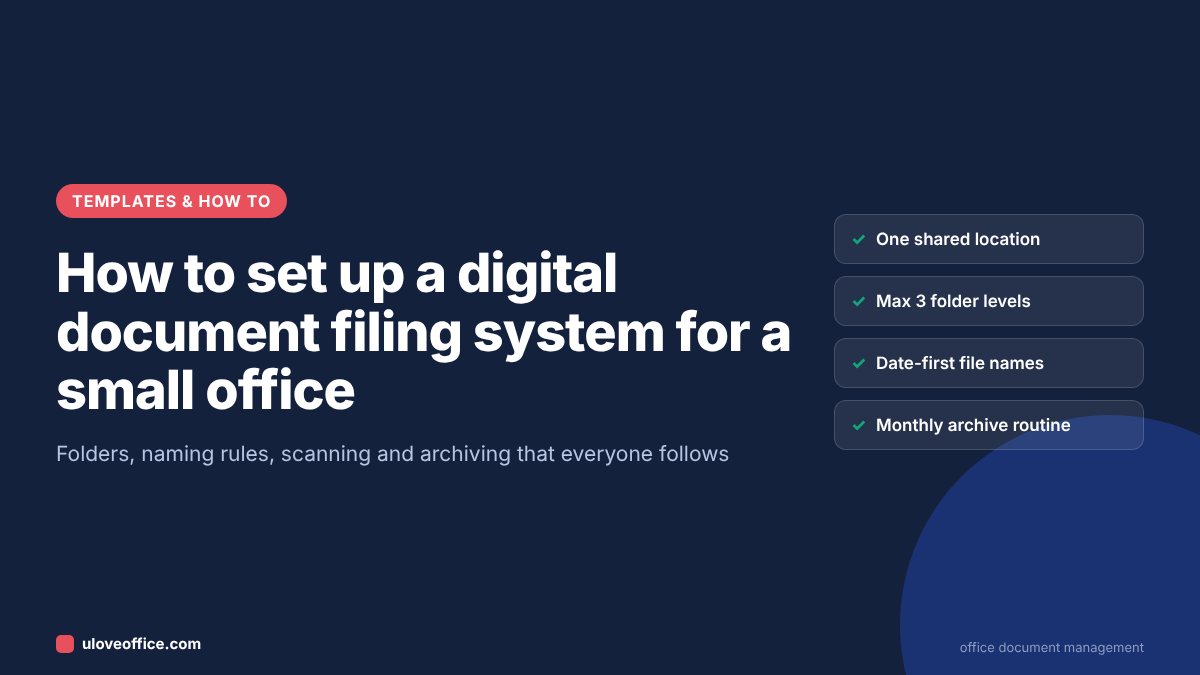
Quick answer: A good digital filing system for a small office has five parts: one shared location (such as SharePoint, OneDrive, Google Drive or a company server), a folder structure no deeper than three levels organised by function and year, a file naming rule starting with the date (YYYY-MM-DD_Type_Party_Description), a scanning routine that makes paper searchable with OCR, and an archive routine that moves finished years into read-only storage as PDF/A. Write the rules on one page, set access by role, and review once a quarter.
Most small offices do not lack documents; they lack a way to find them. Contracts sit in someone’s email, invoices on a desktop, and the trade licence copy exists in six versions. A simple, shared system saves hours every week and makes audits, staff changes and remote work much easier.
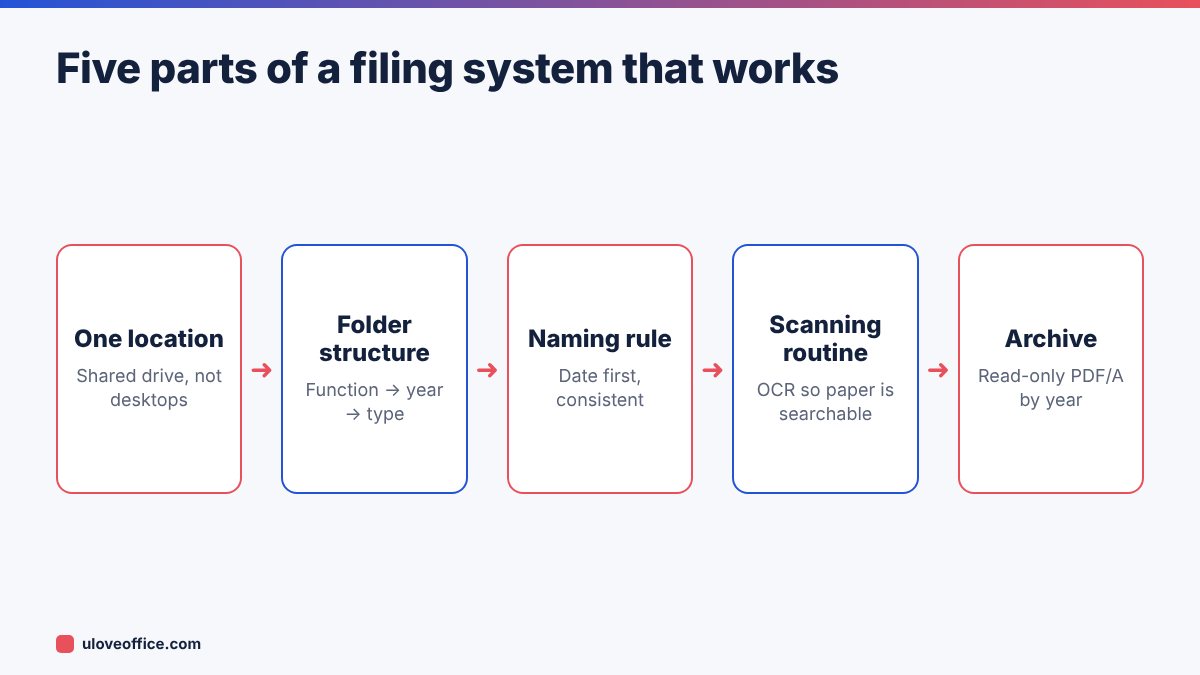
Step 1: Choose one shared location
Everything the business owns should live in one shared place, not on personal desktops, USB drives or personal email. Common choices for UAE SMEs:
- Microsoft 365 (SharePoint and OneDrive): good if you already use Outlook and Teams.
- Google Workspace (Google Drive shared drives): good if you use Gmail.
- A local server or NAS: works offline but needs backups and someone to maintain it.
Whatever you choose, use shared or team drives owned by the company, not folders owned by one employee’s account. When that employee leaves, company-owned drives stay with the company.
Step 2: Design the folder structure
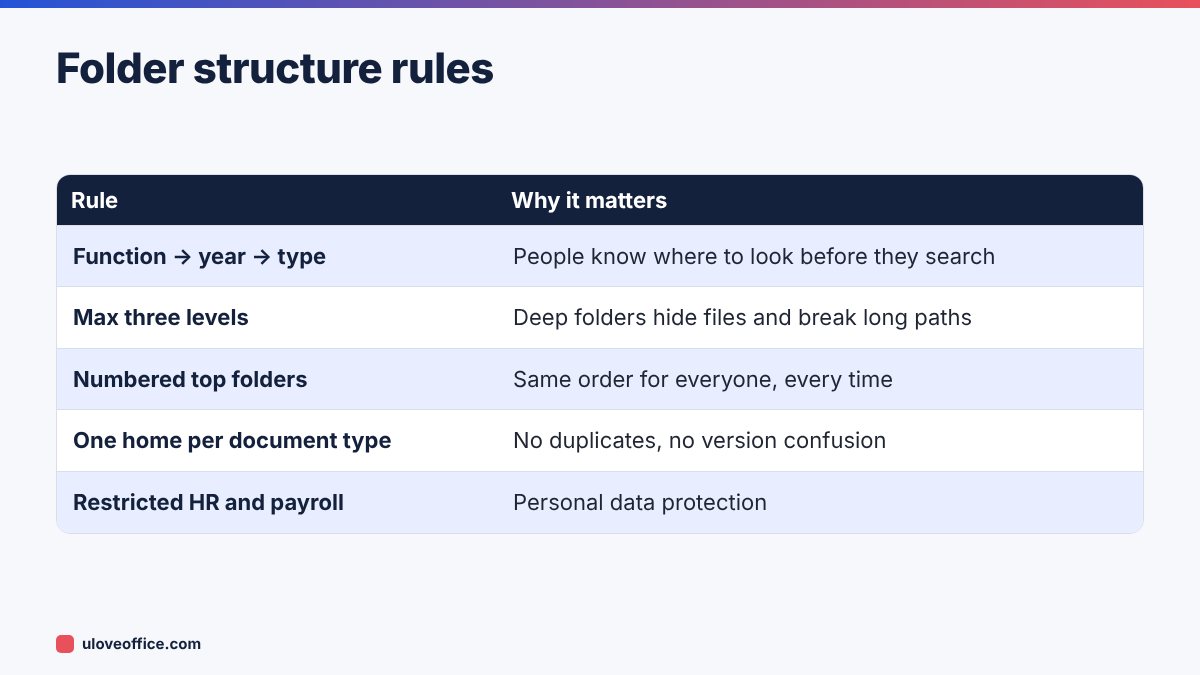
Keep it shallow and predictable. A structure organised by function first, then year, then document type works for most small businesses:
Company/
  01-Admin-Legal/
    Licences-Permits/
    Contracts/
    Company-Documents/
  02-Finance/
    2026/
      Sales-Invoices/
      Purchase-Invoices/
      Bank/
      VAT/
  03-HR/
    Employees/ (restricted)
    Policies/
  04-Sales-Clients/
    Client-A/
  05-Operations/
  06-Marketing/
  99-Archive/
Rules that keep it usable:
- Number top-level folders so they sort in a fixed order.
- No more than three levels where possible. Deep structures hide files.
- One home for each document type. Contracts live in Contracts, not also in Sales and Finance.
- Restricted folders for HR and payroll, with access only for those who need it.
Step 3: Agree a file naming rule
A naming rule means anyone can find a file by sorting or searching. Recommended pattern:
YYYY-MM-DD_DocumentType_Party_ShortDescription_vX
Examples:
2026-11-03_Contract_ClientA_Maintenance_v2.pdf2026-11-15_Invoice_SupplierB_INV-4471.pdf2026-10_Bank-Statement_ENBD-Current.pdf2026-11-20_Policy_Expense-Reimbursement_v1.docx
Why date first? Files sort chronologically, and you can tell at a glance how current a document is. Use hyphens or underscores instead of spaces, avoid special characters like / \ : * ? " < > |, and keep names under about 80 characters.
Versions: use _v1, _v2 for drafts and _FINAL only once. Better still, use the version history built into SharePoint or Google Drive, and keep one current file.
Step 4: Set up a scanning routine
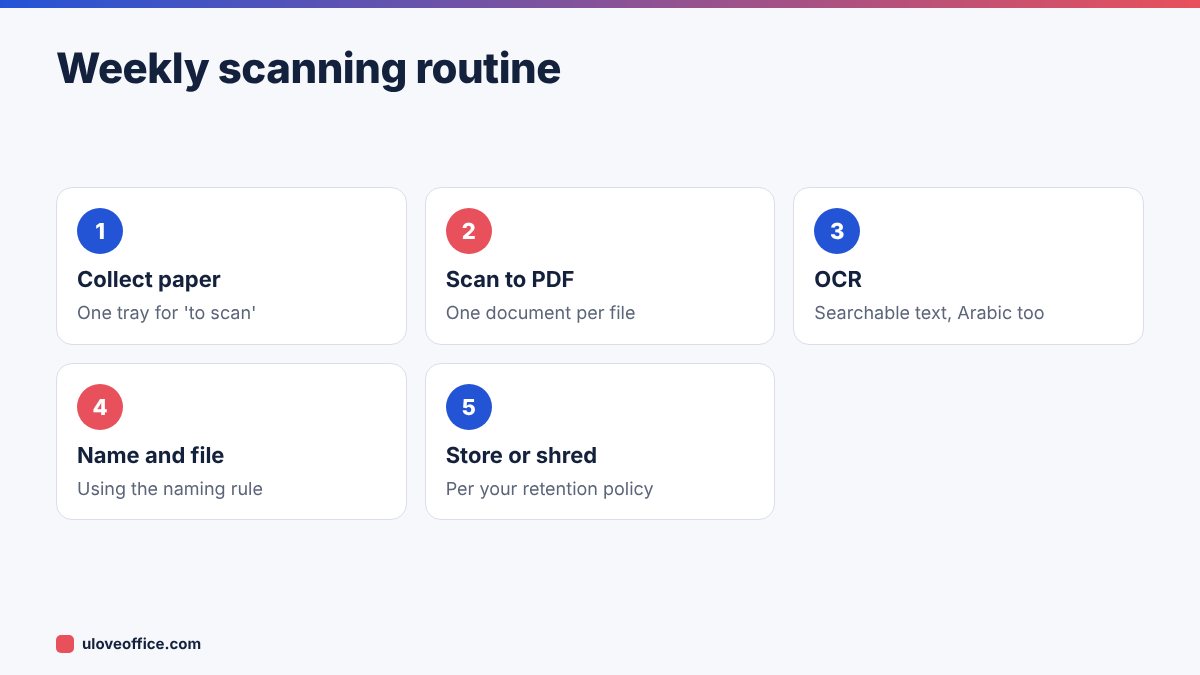
Paper still arrives: delivery notes, signed contracts, government letters, receipts. Decide who scans, when and how:
- Scan weekly (or daily for busy offices) using a scanner or a phone scanning app.
- Save as PDF, one document per file. Use Split PDF if several documents were scanned together.
- Run OCR with OCR PDF so the text is searchable, including Arabic.
- Rotate and reorder pages with Organize PDF if needed.
- Name and file using the naming rule.
- Decide on the paper: keep originals where legally required (for example some signed contracts), otherwise store them by month and shred after an agreed period.
Step 5: Control access
Not everyone needs everything:
- Everyone: policies, templates, shared marketing materials.
- Department members: their department folders.
- Managers and owners: finance and contracts.
- HR only: employee files and payroll.
Give access to groups (for example “Finance team”) rather than individuals, so new joiners and leavers are handled in one place. Review access every quarter and immediately when someone leaves.
For individual sensitive files sent outside the company, use Protect PDF and share the password separately.
Step 6: Archive by year
At the end of each financial year:
- Check the year’s finance folders are complete.
- Merge monthly documents into a few files per type with Merge PDF, if that helps.
- Convert final records to PDF/A for long-term storage.
- Move the year into
99-Archive/2026/and set it to read-only. - Record the retention end date in an index. Our guide to UAE business record retention explains how long to keep tax and other records.
Step 7: Back up
A shared drive is not a backup. Files can be deleted by mistake, encrypted by ransomware or lost if an account is closed. Use:
- Version history and recycle bin in your cloud service for quick recovery.
- A separate backup of important folders, in a different account or location, at least weekly.
- A test restore every quarter: try recovering a file to prove the backup works.
Writing the one-page filing policy
Put the rules on one page and share it with everyone:
- Where files live (and where they must not live).
- The folder structure (top two levels).
- The naming rule with three examples.
- Who scans paper and when.
- Who can access what.
- Archive and backup routine.
- Who to ask (a named “filing owner”).
Add it to onboarding, so every new joiner learns the system on day one.
Worked example: a 12-person trading company
Before: contracts in the owner’s email, supplier invoices on the accountant’s desktop, three copies of the trade licence with different expiry dates, and new staff asking where everything is.
They set up a Microsoft 365 SharePoint site with the numbered folder structure, agreed the naming rule and spent two afternoons moving and renaming the most important files. The receptionist scans paper every Thursday. The accountant archives each month. Three months later, the time to find any contract or invoice dropped from “ask around” to under a minute, and the annual audit requests were answered in two days.
Moving existing files into the new system
The hardest part is not designing the structure but moving years of existing files. Do it in stages:
- Freeze the old locations. Announce a date after which nobody saves new files to desktops or old shared folders.
- Move current-year files first. These are the ones people search for. Rename them with the naming rule as you move them.
- Move important older documents next: contracts still in force, licences, company documents, the last five to seven years of finance records.
- Archive the rest in bulk. Copy everything else into
99-Archive/Unsorted-before-2026/without renaming. It is searchable if needed, but nobody has to sort it. - Delete duplicates only once you are sure the moved copy is complete.
Ask each department head to own their own folders during the move. A shared deadline and a short daily check-in keep the project from dragging on for months.
Searching effectively
Even a perfect structure relies on search. Teach staff three habits: search by date prefix (2026-11) to find recent items, search by party name to find all documents for a client or supplier, and use the file type filter (PDF, Excel) in SharePoint or Google Drive. Because scans have been OCR’d, searching for an invoice number or an Emirates ID number works inside documents, not just file names, which is also a reminder to restrict access to folders containing personal data.
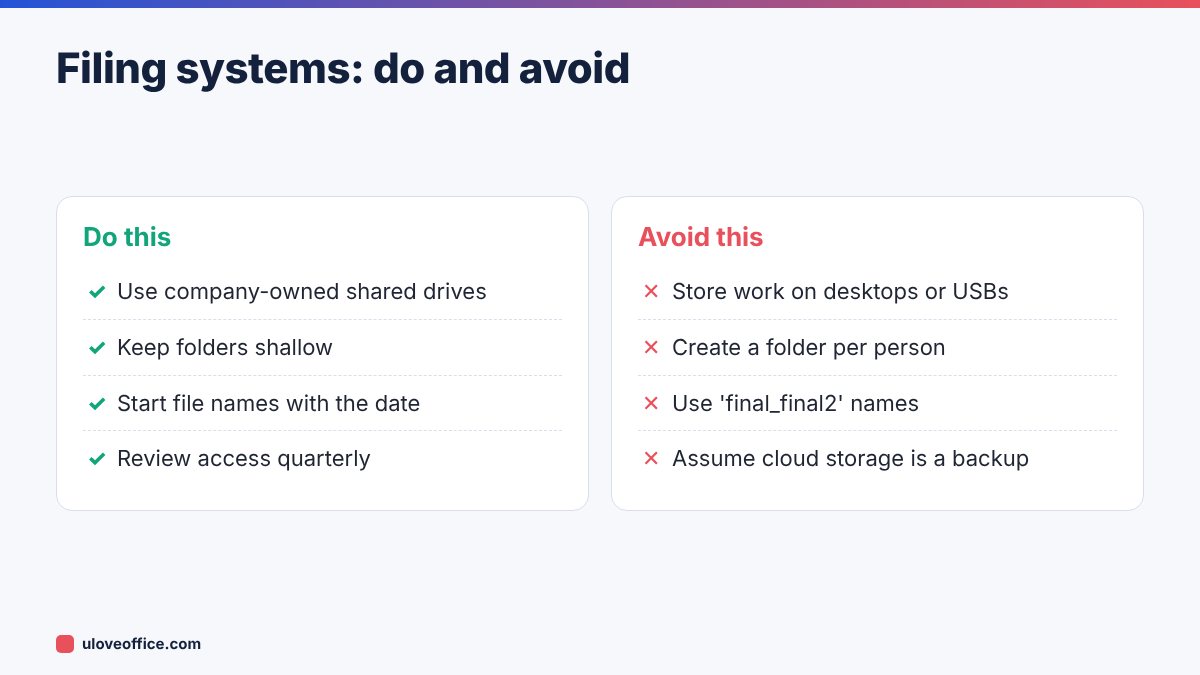
Common mistakes
Templates and the “start here” page
Create a 00-Start-Here folder at the top of the structure containing the one-page filing policy, the folder map and approved templates: letterhead, quotation, invoice, contract, HR letters and the expense claim form. When templates live in one known place, people stop reusing old documents with outdated details, which is one of the most common causes of mistakes such as a wrong TRN or an expired licence number on an official letter.
Review the templates folder every quarter and remove anything outdated, so nobody picks up an old version by mistake.
Key takeaways
- Choose one company-owned shared location and stop saving work on desktops.
- Organise folders by function, then year, then type, no more than three levels deep.
- Use a date-first naming rule and avoid version chaos.
- Scan weekly, run OCR and file paper using the same rules.
- Restrict sensitive folders, archive by year as PDF/A and test your backups.
📘 Continue reading
Frequently asked questions
Should folders be organised by client or by document type?
For sales and project work, by client or project. For finance and admin, by year and type. Mixing both at the top level causes confusion.
What about email attachments?
Save important attachments to the shared drive with the naming rule. Email is not a filing system.
How long does setup take?
For a small office, one or two days to set up and move key files, then a few weeks for habits to settle.
Do we need document management software?
Not usually at small scale. SharePoint or Google Drive with good rules is enough for most SMEs.
Conclusion
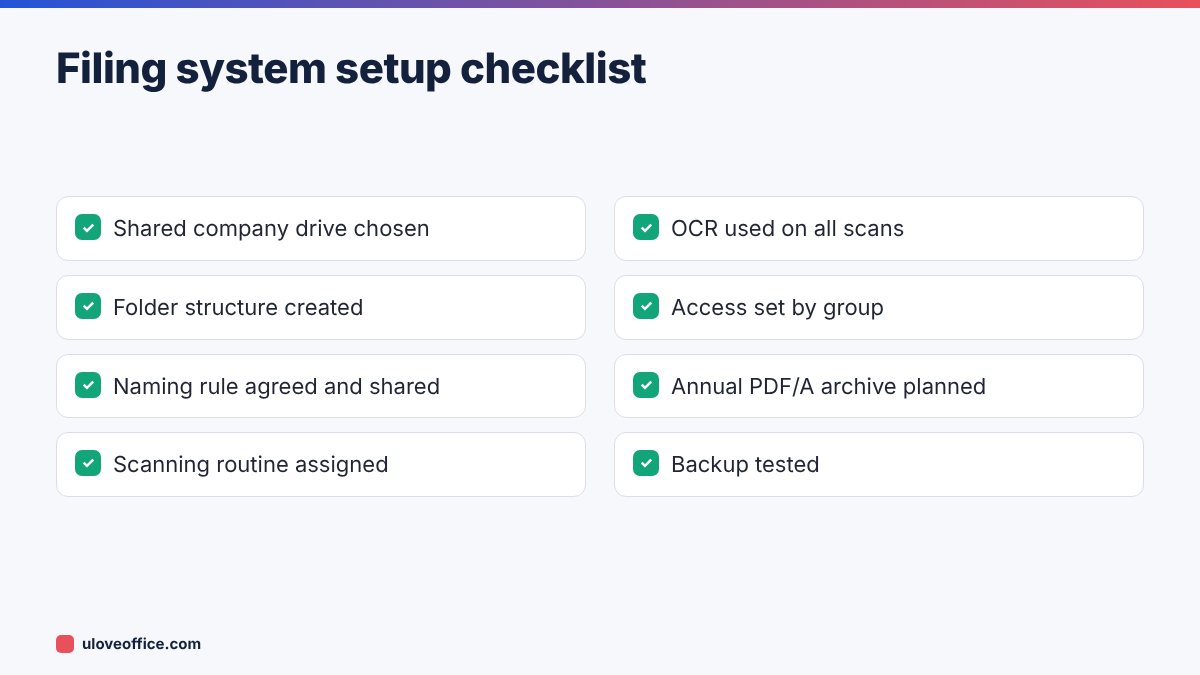
A digital filing system succeeds through simple rules applied by everyone: one shared location, a shallow folder structure, date-first file names, a weekly scanning routine with OCR, role-based access, yearly PDF/A archives and tested backups. Write the rules on one page, appoint a filing owner and review every quarter. Finding a document should take seconds, not a search party.
Last checked: 9 November 2026.