
How to unlock a password-protected PDF (when you know the password)
Quick answer: To unlock a PDF whose password you know, upload it to ULoveOffice Unlock PDF, enter the password if asked, and download the unlocked copy. The new file opens without a password and allows printing, copying and editing. This is useful for bank statements, payslips and reports you receive with a password every month. Only unlock files you own or are authorised to use, and if the file contains sensitive data, store it securely or re-protect it with Protect PDF before sharing.
UAE banks, telecom providers, payroll systems and government portals often send PDFs protected with a password, typically something like your date of birth or part of your account number. Typing it every time you open the statement is tedious, and the protection can stop you from merging the file, converting it to Excel or uploading it to a portal. Unlocking a copy fixes that.
Open password vs permissions password
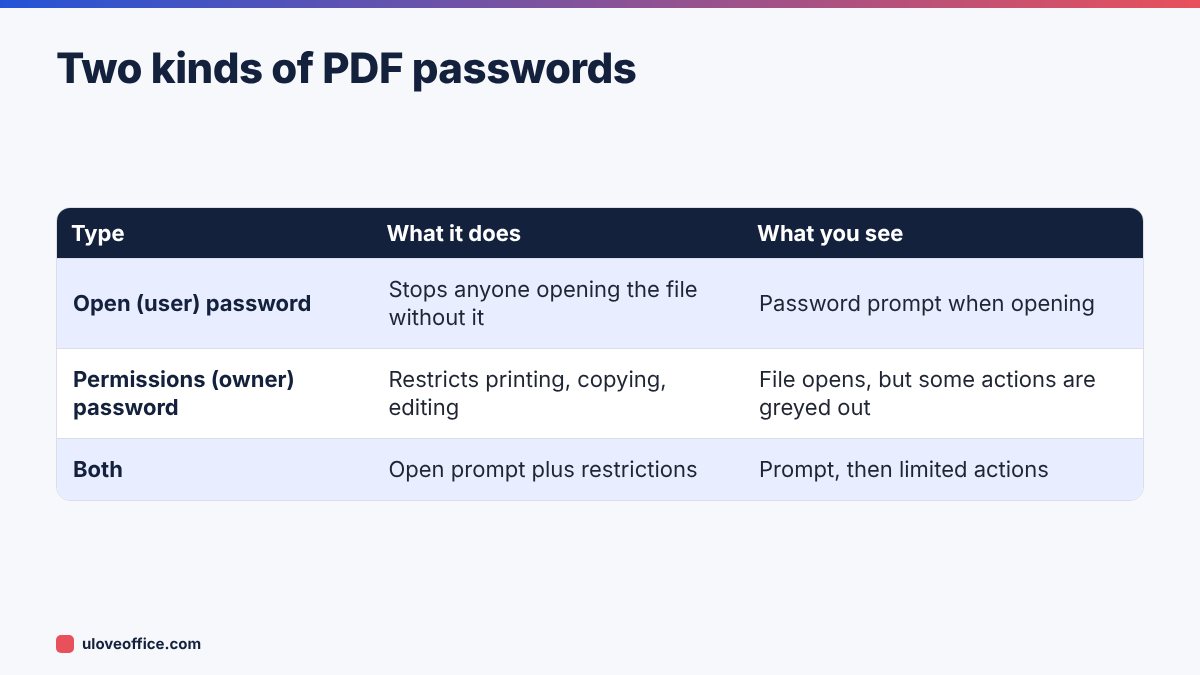
PDFs can have two kinds of protection:
Open password (also called user password). You cannot see anything in the file without it. Bank statements and payslips usually use this type. To unlock, you need the password.
Permissions password (also called owner password). The file opens normally, but printing, copying text, editing or filling forms may be blocked. Contracts and reports from some organisations use this to stop changes.
Unlocking removes the protection from your copy, so it opens freely and all actions are allowed.
When it is appropriate to unlock a PDF
Unlocking is legitimate when:
- It is your own document, such as your bank statement, payslip, utility bill or a file you created and protected.
- Your organisation owns the document and you are authorised to process it, such as supplier statements your finance team needs to convert to Excel.
- The sender gave you the password for the purpose you are using it for.
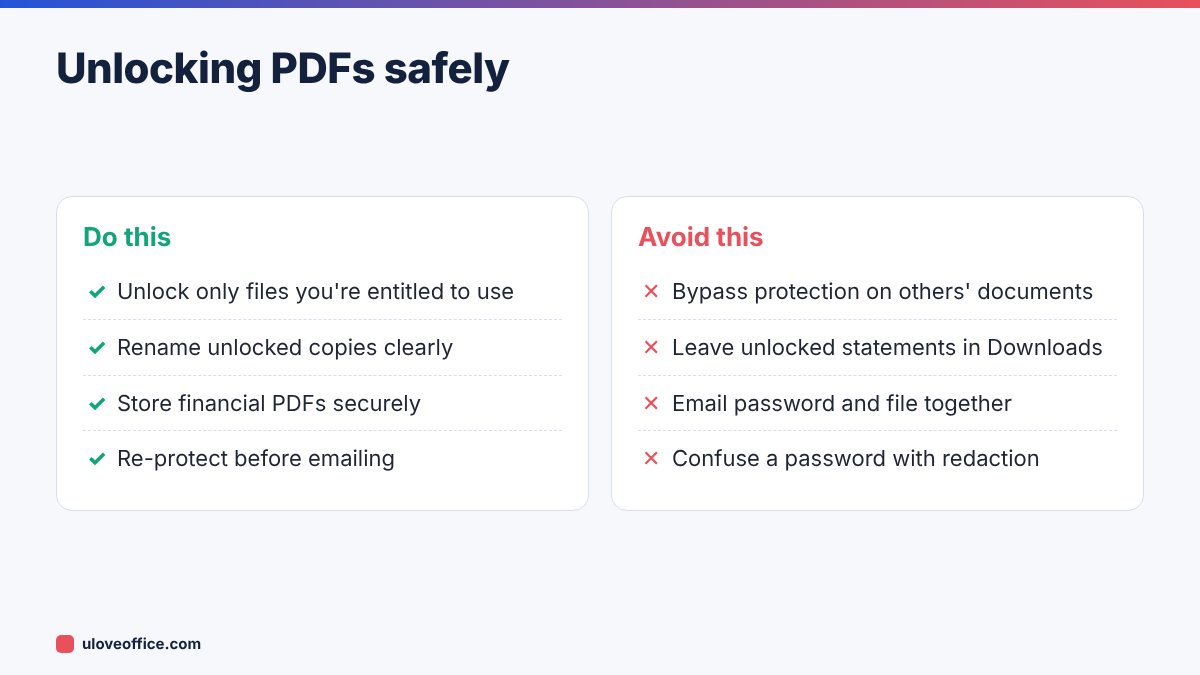
Do not use unlocking tools to get around protection on documents you are not entitled to edit or copy, such as licensed publications or confidential documents someone deliberately restricted. If in doubt, ask the sender for an unprotected version.
How to unlock a PDF with ULoveOffice
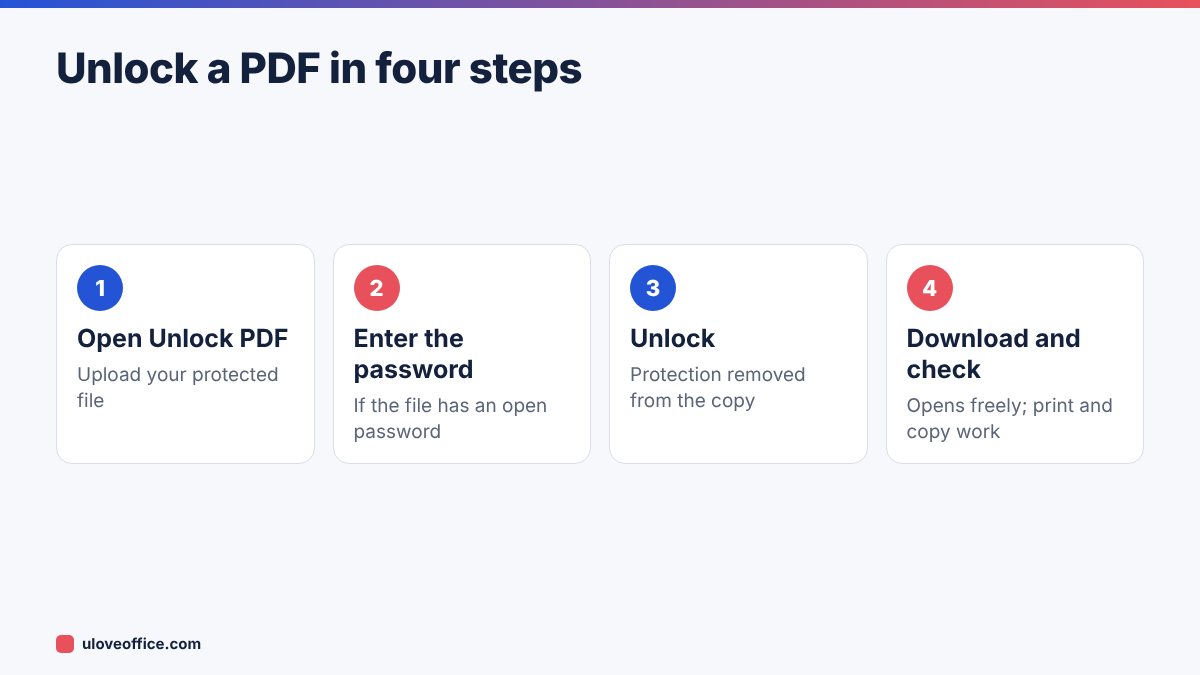
- Go to Unlock PDF and upload the file.
- If the file has an open password, enter it when prompted.
- Click to unlock.
- Download the unlocked PDF. Open it to confirm it no longer asks for a password and that printing and copying work.
Rename the file clearly, for example 2026-10_Bank-statement_unlocked.pdf, and store it in the right folder.
Alternative: unlock with your PDF viewer
If you prefer not to upload a file, you can often remove an open password you know using software already on your computer:
- Google Chrome or Microsoft Edge: open the PDF in the browser, enter the password, then choose Print and select Save as PDF as the printer. The saved copy has no password. (This creates a printed copy; links and form fields may be lost, and it does not work if printing is restricted.)
- Mac Preview: open the file, enter the password, then File > Export as PDF, making sure the Encrypt option is unticked.
- Adobe Acrobat (paid): open the file, then go to the protection settings and set security to “No Security”.
For many files, or files with permissions restrictions, an unlock tool is faster.
What to do after unlocking
Removing a password also removes protection, so think about where the file goes:
- Personal financial documents: store them in a secure folder, not your Downloads folder or desktop.
- Sharing with an accountant or bank: re-protect the file with Protect PDF and send the password by a different channel (phone or text, not the same email).
- Uploading to a portal: some portals reject protected files; unlocked files upload normally. Delete local copies you no longer need afterwards.

Common reasons you need an unlocked PDF
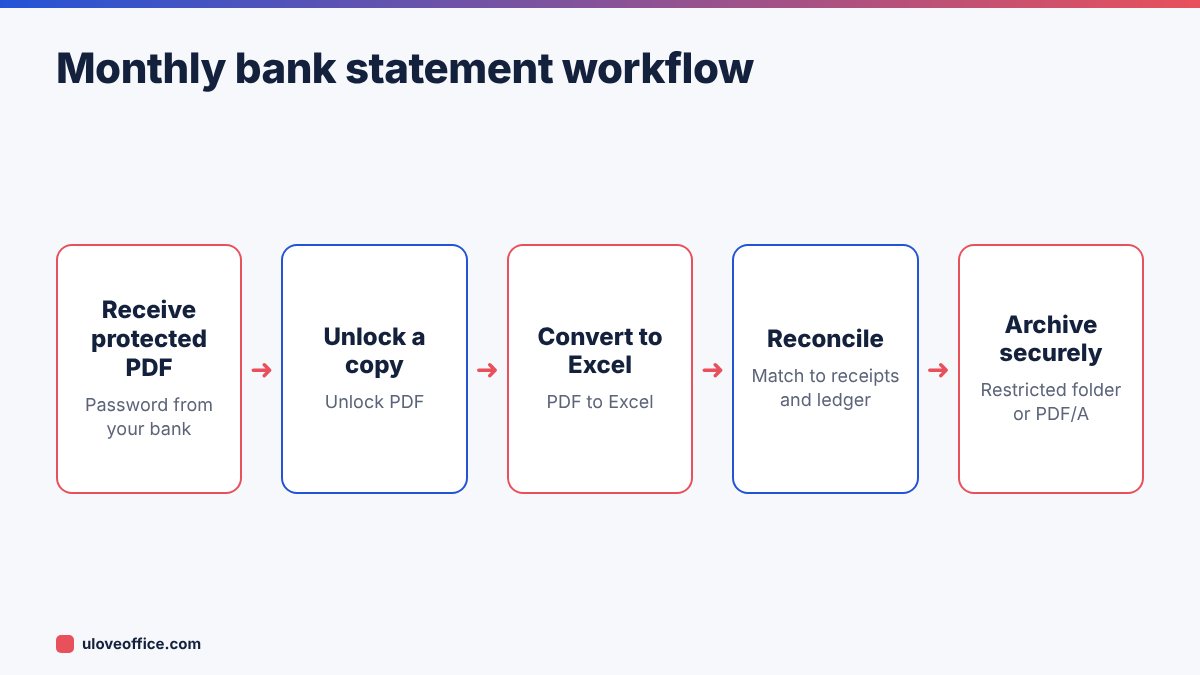
- Converting to Excel: PDF to Excel cannot read a protected file. Unlock first, then convert bank or card statements for reconciliation.
- Merging documents: combining several statements into one file for a visa, mortgage or loan application with Merge PDF.
- Compressing for upload: portals often limit file size; Compress PDF works on unlocked files.
- Filling a restricted form: if a form you are entitled to complete is locked for editing, unlock it, then use Fill PDF Forms.
- Archiving: PDF/A, the archive format, does not allow encryption. Unlock before converting with PDF to PDF/A.
Forgotten password?
If you have forgotten the password to your own file, check where it came from. Banks and providers usually explain the password format in the email or on their website (often a combination of date of birth, part of an ID or account number). If you created the file yourself and cannot remember the password, look for the original unprotected source (the Word or Excel file) rather than trying to break the protection. Unlock PDF is for removing passwords you know.
Troubleshooting
“Incorrect password.” Check the format: some providers use DDMMYYYY, others DDMMYY or the last digits of an account number. Check caps lock.
The unlocked file still restricts printing. Some files have both kinds of protection. Run the unlock again, or use the print-to-PDF method.
Text cannot be copied even after unlocking. The PDF may be a scanned image. Run OCR PDF to make the text selectable.
The file is very large after unlocking. Use Compress PDF.
Protecting your own PDFs properly
If you send sensitive PDFs, use passwords well:
- Use a strong, unique password, not a date of birth that appears elsewhere in the document.
- Send the password by a different channel.
- Use a permissions password if you want people to read but not edit a document, such as a final contract or price list.
- Remember: protection is not redaction. If someone should not see information at all, remove it with Redact PDF rather than relying on a password.
Our guide on how to password protect a PDF for free covers the steps.
Unlocking PDFs in a finance team
Finance teams handle protected PDFs every day: bank and card statements, supplier statements, payslip files from payroll providers and reports from auditors. A simple team rule avoids risk:
- Save the original protected file in the month folder.
- Create an unlocked working copy only when you need to convert, merge or upload it.
- Name the working copy with “_unlocked” so it is obvious.
- Delete unlocked working copies once the task is done, or move them into the restricted archive.
- Never forward an unlocked bank statement outside the company without re-protecting it.
If your bank offers unprotected statement downloads through secure online banking, use that instead of unlocking emailed statements. It saves a step and keeps the protected email copies as a backup.
Unlocking vs converting: which comes first?
When you need to do several things to a protected PDF, the order matters. Unlock first, because almost every other tool needs an unprotected file. Then OCR if it is a scan, then convert, merge or compress, and finally protect or archive the result. Following this order avoids errors such as “file is encrypted” halfway through a job and ensures the final file has the protection you actually want.
Key takeaways
- An open password stops opening; a permissions password restricts actions.
- Unlock PDF removes a password you know from a copy in seconds.
- Unlocking is useful before converting, merging, compressing or archiving.
- Store unlocked sensitive files securely and re-protect before sharing.
📘 Continue reading
Frequently asked questions
Is it legal to unlock a PDF?
Removing a password from your own documents, or documents you are authorised to use, is normal practice. Do not bypass protection on documents you are not entitled to modify.
Does unlocking change the original file?
No. You download a new, unlocked copy. Keep or delete the original as you prefer.
Can I unlock several PDFs at once?
Process them one by one, or ask the sender (for example your bank) whether they can send unprotected statements through a secure channel.
Can I unlock a PDF on my phone?
Yes, through your mobile browser.
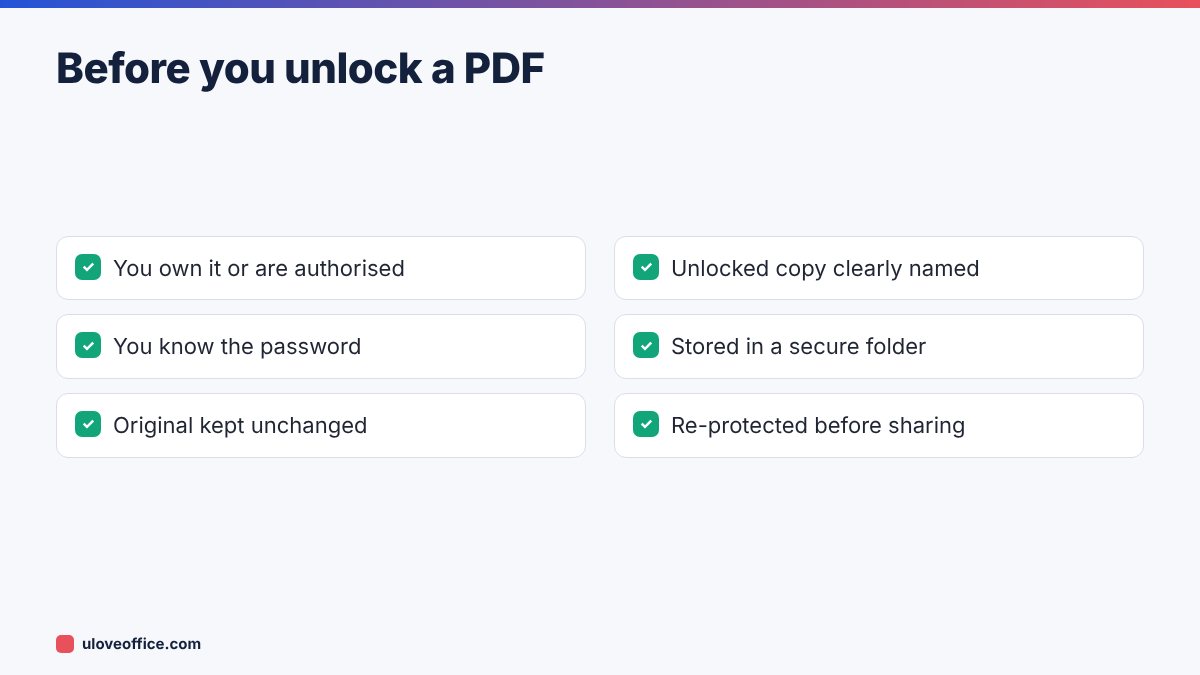
If you handle many protected files every month, add these checks to your team’s written procedures so everyone follows the same steps, including new joiners and temporary staff covering during leave. A short written procedure is much easier to follow than a habit passed on by word of mouth.
Key takeaways
- Know which protection you have: an open password or a permissions password.
- Unlock only files you own or are authorised to use, with a password you know.
- Unlock first, then OCR, convert, merge or compress, then protect or archive.
- Store unlocked financial documents securely and re-protect before sharing.
- Use redaction, not passwords, for information others must never see.
Conclusion
Unlocking a PDF you are entitled to use saves time every month: no more typing passwords, and no more blocked conversions, merges or uploads. Use Unlock PDF, check the result, store sensitive files securely and re-protect them before sharing. For anything that must stay confidential, remember that redaction, not a password, is what truly removes information.
Last checked: 9 November 2026.