
ChatGPT for Excel: write formulas, clean data and build reports
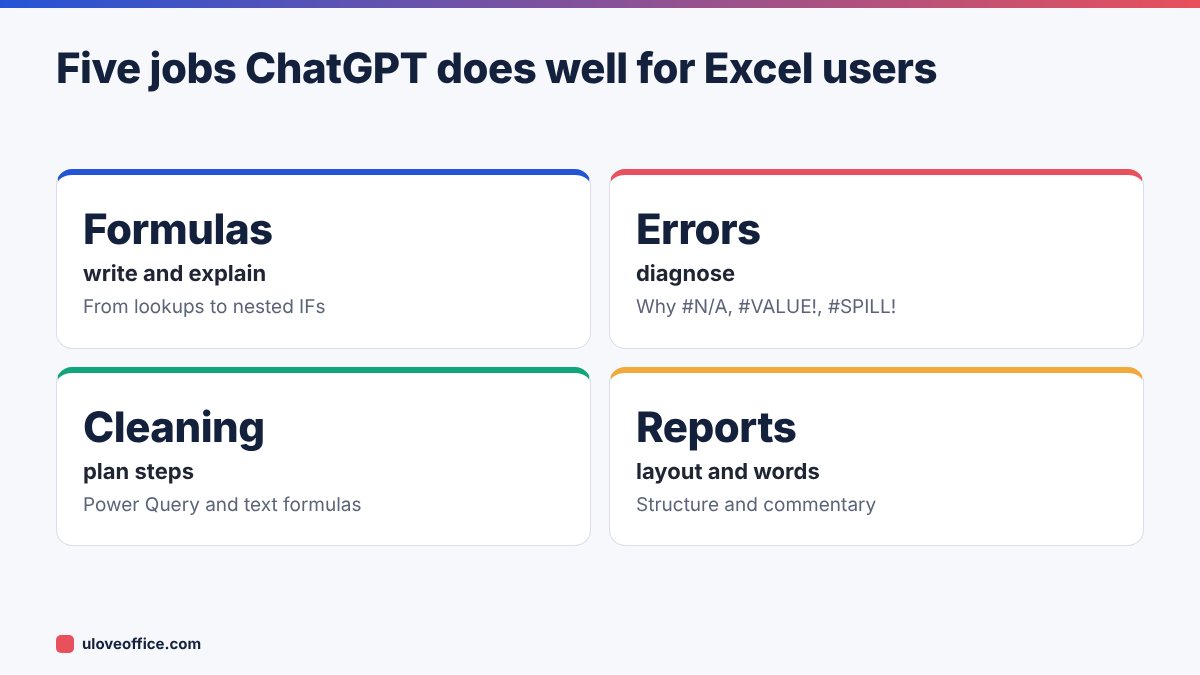
Quick answer: ChatGPT is very good at writing and explaining Excel formulas, diagnosing errors, planning data clean-up steps (including Power Query), suggesting report layouts and drafting commentary from summary numbers. The key is to describe your sheet precisely: column letters, headers, a few example values and the exact result you want. Test every formula on a few rows you can check by hand. Avoid uploading files with personal or confidential data unless your company has approved the tool and plan; often you can describe the structure instead.
If you already use Microsoft 365 Copilot in Excel, our guide to Excel Copilot prompts covers that tool, which works directly inside your workbook. This guide focuses on ChatGPT as a separate assistant, which many office workers use alongside Excel, including on older Excel versions.
The golden rule: describe the sheet precisely
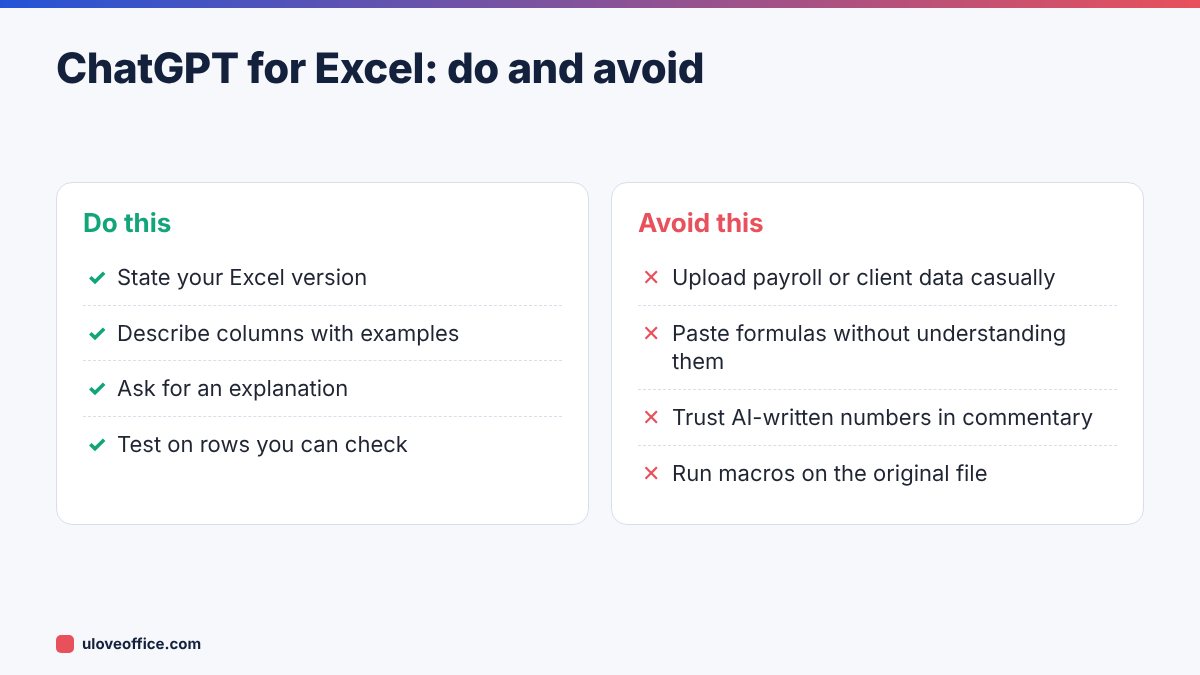
ChatGPT cannot see your screen. Vague questions get generic answers. Give it:
- Column letters and headers: “Column A: Invoice date (real dates), Column B: Customer, Column C: Amount AED, Column D: Status (Paid/Unpaid).”
- Where the data starts: “Headers in row 1, data from row 2 to row 500.”
- Your Excel version: “Excel 2019” or “Microsoft 365”. Newer functions such as XLOOKUP, FILTER and LET are not available in older versions.
- The result you want, with an example: “In E2, show ‘Overdue’ if status is Unpaid and the date is more than 30 days before today, otherwise blank.”
- Regional details: dates in DD/MM/YYYY, the UAE weekend (Saturday and Sunday), 5% VAT.
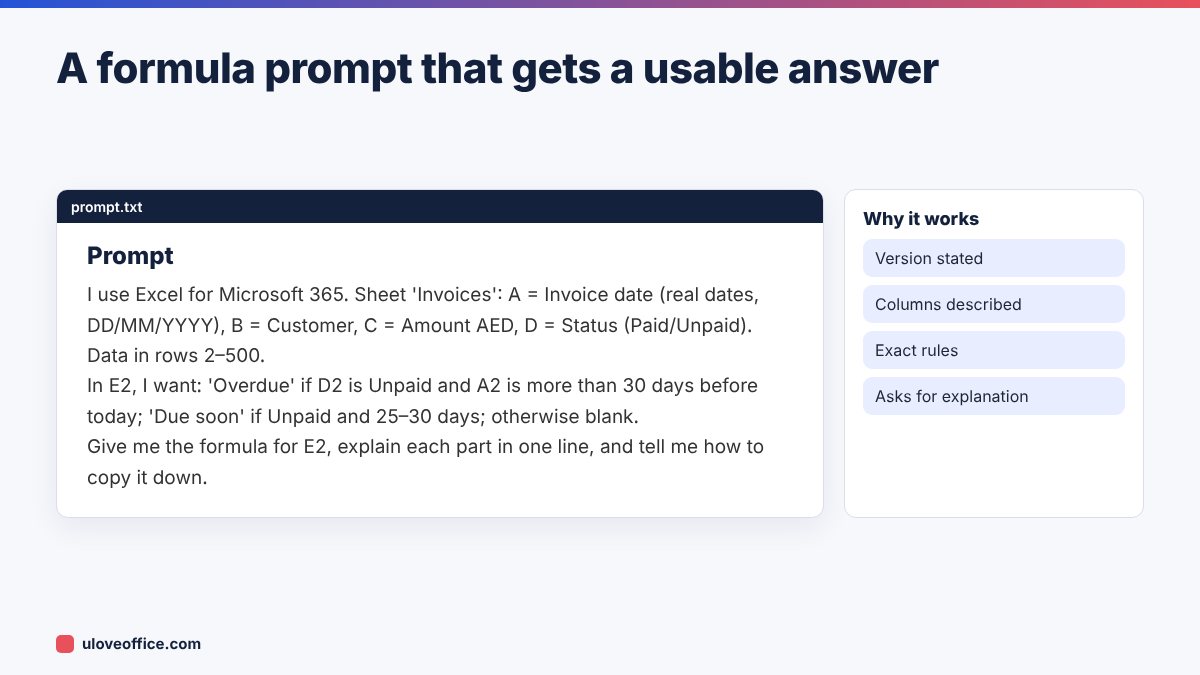
A typical answer would be:
=IF(D2="Unpaid", IF(TODAY()-A2>30, "Overdue", IF(TODAY()-A2>=25, "Due soon", "")), "")
Then test it on rows where you know the answer.
1. Writing formulas
Good prompts for common office tasks:
- “Write an XLOOKUP that finds the customer name in sheet ‘Customers’ (A: ID, B: Name) for the ID in A2, and shows ‘Not found’ if missing.”
- “Write a SUMIFS that totals column C for customer in B2 and dates in October 2026, using the date in column A.”
- “Calculate working days between A2 and B2 using a Saturday–Sunday weekend and holidays listed in Holidays!A2:A20.”
- “Split full names in A2 into first name and last name, handling names with three parts.”
- “Calculate the VAT included in an amount of AED 1,050 at 5%.” (Answer: amount × 5 ÷ 105 = 50.)
Ask for two versions if colleagues use older Excel: “Give me a Microsoft 365 version and an Excel 2016 version.”
2. Understanding formulas you inherited
Paste a formula from an old workbook and ask: “Explain this formula step by step in plain English, and tell me what could make it return the wrong result.”
This is one of the most valuable uses: understanding a colleague’s 300-character nested IF before changing it.
3. Fixing errors
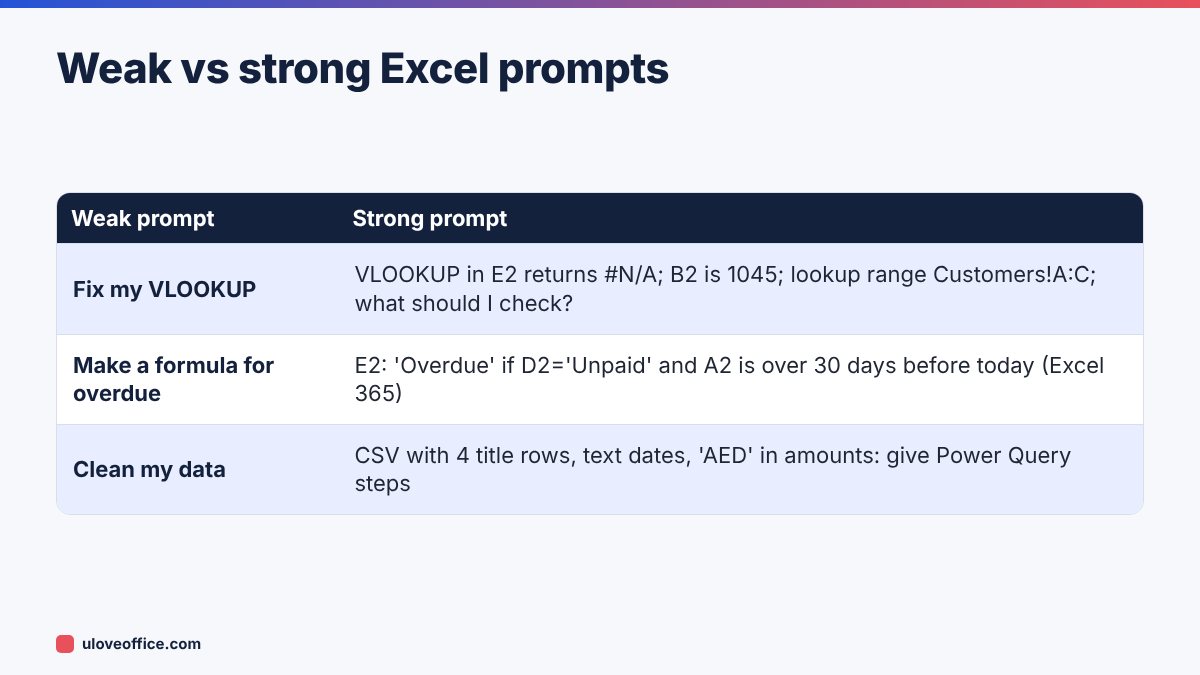
Describe the error precisely: “This formula in E2 returns #N/A: =VLOOKUP(B2, Customers!A:C, 3, FALSE). B2 contains 1045. The Customers sheet column A contains customer IDs. What are the likely causes and how do I check each one?”
ChatGPT will list causes such as numbers stored as text, extra spaces and wrong ranges, with checks for each. Our guide on fixing common Excel errors covers the same ground if you prefer a reference.
4. Planning data cleaning
ChatGPT is a good planner for messy data. Describe the mess:
“I export a sales report from our system as CSV. Problems: first 4 rows are titles, dates are text like ’03-Oct-2026′, amounts include ‘AED’ and commas, some customer names have trailing spaces, and there is a total row at the bottom. Give me Power Query steps (button-by-button) to clean it, so I can refresh every month.”
It will give you a step list similar to our Power Query guide, tailored to your file. Follow it in Power Query, renaming each step so you remember what it does.
5. Building reports
Ask for structure, not just formulas:
“I have a table of invoices with Date, Branch, Customer, Product, Amount. Suggest a one-page monthly management report: which tables and charts to include, the formulas or PivotTables for each, and the layout.”
Then ask for each piece in turn. For Microsoft 365 users, ask for GROUPBY or PIVOTBY versions; see our GROUPBY guide.
6. Writing commentary
Once you have summary numbers, ChatGPT can draft the words around them. Give it only the summary, not the raw data:
“Here are our monthly results: Sales AED 1.24m (budget 1.30m, last year 1.10m). Gross margin 31% (budget 33%). Dubai +12% vs last year, Abu Dhabi -4%, Sharjah +3%. Write a five-sentence commentary for the owner, neutral tone, highlighting the margin gap.”
Always check the numbers in the draft match your report. AI sometimes rounds or rephrases figures incorrectly.

7. Macros and VBA
ChatGPT can write VBA macros, for example to split a sheet into separate files per branch or to email reports. Be careful:
- Only use macros if your company permits them; many organisations block macros for security.
- Read the explanation and test on a copy of the file.
- Never run macro code from untrusted sources.
- For repeatable data tasks, Power Query is often safer and easier to maintain than VBA.
Data privacy: describe, don’t upload
Many tasks need no real data at all. Describe the columns and use made-up example rows. If you do need ChatGPT to analyse a file:
- Use your company-approved plan, where data is not used for training.
- Remove or anonymise personal data: names, Emirates ID, salaries, IBANs.
- Upload only the columns needed.
Our guide on whether it is safe to upload company documents to ChatGPT has a full checklist.
The difference between the two columns is detail: version, cells, examples and the exact result. It takes thirty seconds longer to write a strong prompt and saves several rounds of back-and-forth, plus the risk of using a formula built on a misunderstanding.
ChatGPT vs Copilot in Excel
- ChatGPT works with any Excel version, is good for learning and explanations, but cannot see your workbook unless you upload it.
- Copilot in Excel works inside the workbook with your company’s Microsoft 365 permissions and can apply changes directly, but needs a Microsoft 365 Copilot licence.
Many people use both: Copilot for quick in-workbook tasks, ChatGPT for learning, planning and complex explanations. Our comparison of Microsoft Copilot and ChatGPT for office work goes into more detail.
Worked example: an overdue invoice tracker in 20 minutes
An accounts assistant needs a tracker showing overdue invoices by customer. Using ChatGPT:
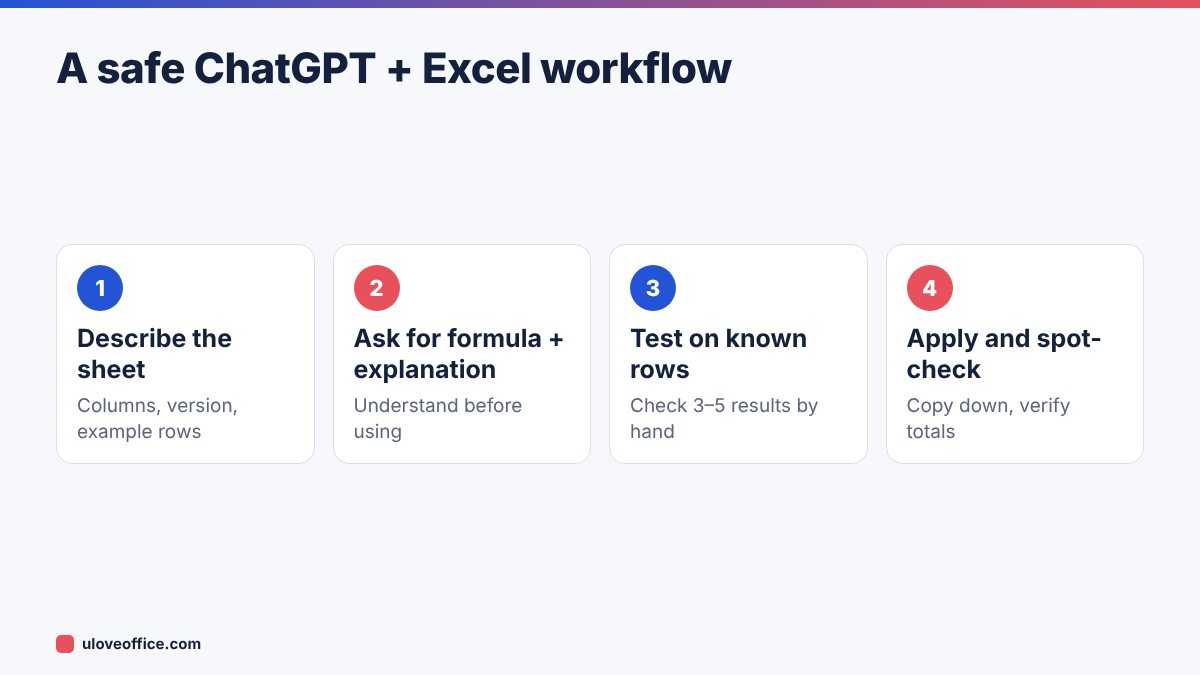
- She describes her invoice table and asks for a status formula (Overdue/Due soon/OK). Tests it on five invoices. Correct.
- She asks for a formula to calculate days overdue. Tests it. Correct.
- She asks how to summarise overdue amounts by customer in Excel 2019 (no GROUPBY). ChatGPT suggests a PivotTable with a filter on status, and gives SUMIFS formulas as an alternative.
- She asks for conditional formatting rules to colour Overdue red and Due soon amber.
- She asks for a three-sentence weekly email template summarising the total overdue and the top three customers.
Everything is built from descriptions; no real customer data was shared. Our accounts receivable aging report guide shows how to extend the tracker into full aging buckets.
Prompt templates to save
Keep these in a note and fill in the brackets:
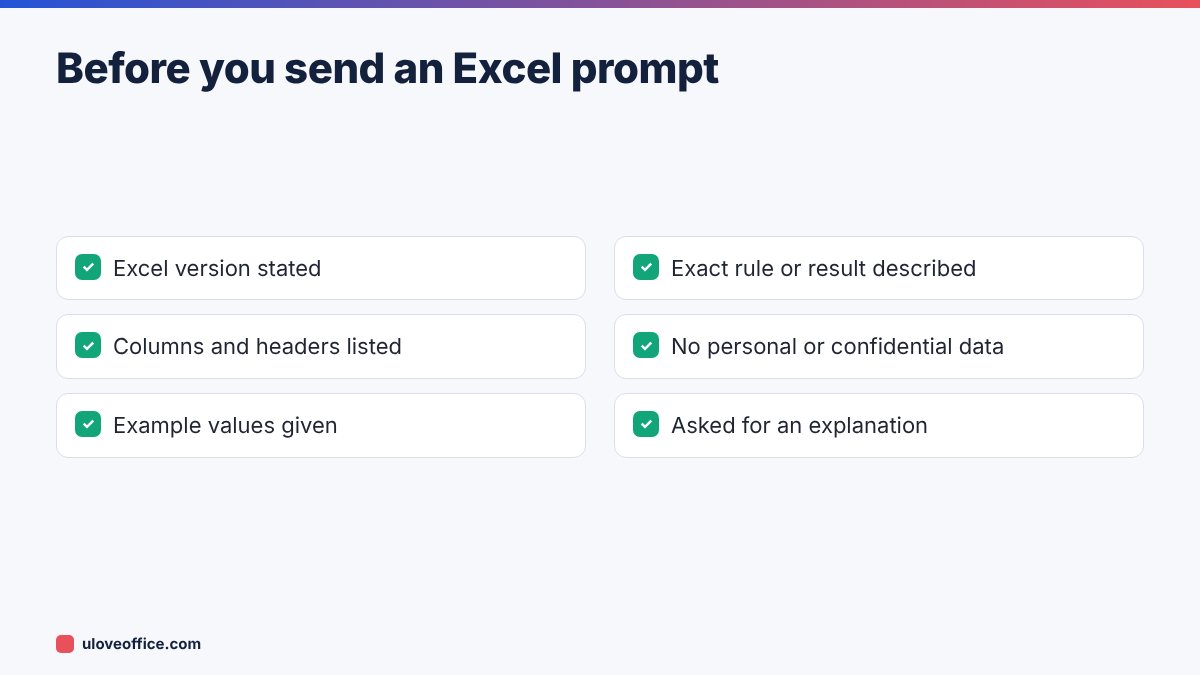
- “I use [Excel version]. Columns: [list]. Data rows [x–y]. In [cell], I want [exact rule]. Give the formula, explain each part, and show the result for these sample rows: [2–3 rows].”
- “Explain this formula line by line and list three ways it could return a wrong result: [formula].”
- “My formula [formula] returns [error] when [situation]. List likely causes in order of probability and how to check each.”
- “Give me Power Query steps, button by button, to clean this export: [describe problems].”
Key takeaways
- Describe your sheet precisely: version, columns, examples and the exact rule you want.
- Ask for explanations so you understand formulas before relying on them.
- Test on rows where you know the answer, then spot-check after copying down.
- Use ChatGPT to plan Power Query cleaning and report layouts, not just formulas.
- Protect data: describe structures and use dummy rows instead of uploading real files.
📘 Continue reading
Frequently asked questions
Is ChatGPT’s formula always correct?
No. It is usually right for well-described problems, but can misunderstand the layout or use functions your version lacks. Always test.
Can ChatGPT read my Excel file?
Plans with file upload can analyse files. Only upload data you are allowed to share, using an approved plan.
What about Google Sheets?
Say “Google Sheets” in the prompt. Most formulas are similar, but some functions differ.
Can ChatGPT help me learn Excel?
Yes. Ask it to explain a function with three examples and a short exercise, then check your answers.
Conclusion
ChatGPT is like having a patient Excel expert at your side: it writes formulas, explains old ones, diagnoses errors, plans clean-up and drafts report commentary. Give it a precise description of your sheet, ask for explanations, test on known rows and keep sensitive data out of the chat. You will build better spreadsheets faster and understand them better too.
Last checked: 9 November 2026.