
Power Query in Excel: clean messy office data automatically
Quick answer: Power Query is a free tool built into Excel (Data tab, Get & Transform Data) that cleans and reshapes data using recorded steps instead of formulas. You load a messy file, such as a bank statement export or an ERP report, then remove junk rows, split columns, fix dates, trim spaces and change data types. Power Query remembers every step. Next month, you drop the new file in and click Refresh, and all the cleaning happens again automatically.
If you spend the first morning of every month deleting blank rows, fixing dates and splitting names in the same report, Power Query was built for you. It is available in Excel for Microsoft 365, Excel 2016 and later on Windows, and in recent versions of Excel for Mac.
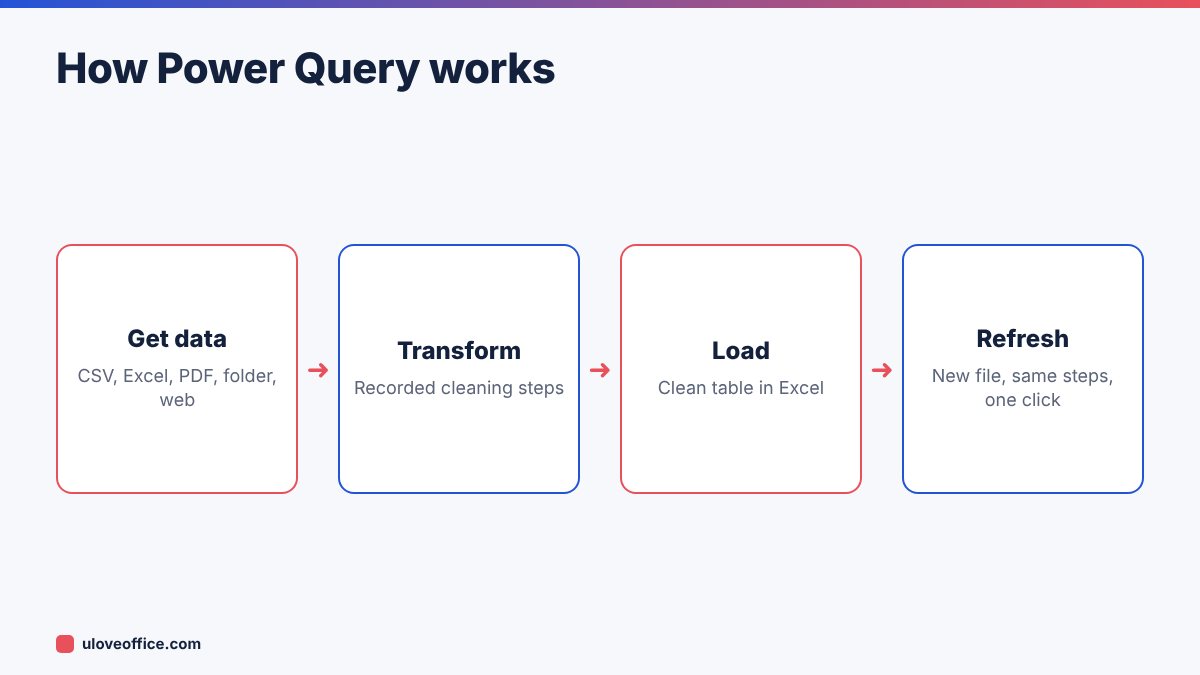
Why Power Query beats manual cleaning
Manual cleaning has three problems: it takes time every month, it depends on one person remembering the steps, and mistakes are invisible. Power Query fixes all three:
- Repeatable: the steps are saved in the file and run again on refresh.
- Transparent: every step is listed in the Applied Steps pane. Anyone can see what was done and undo or change a step.
- Non-destructive: the original file is never changed. Power Query reads it and produces a clean copy.
- Scales: cleaning 500 rows or 500,000 rows takes the same effort.
Our example: a messy bank export
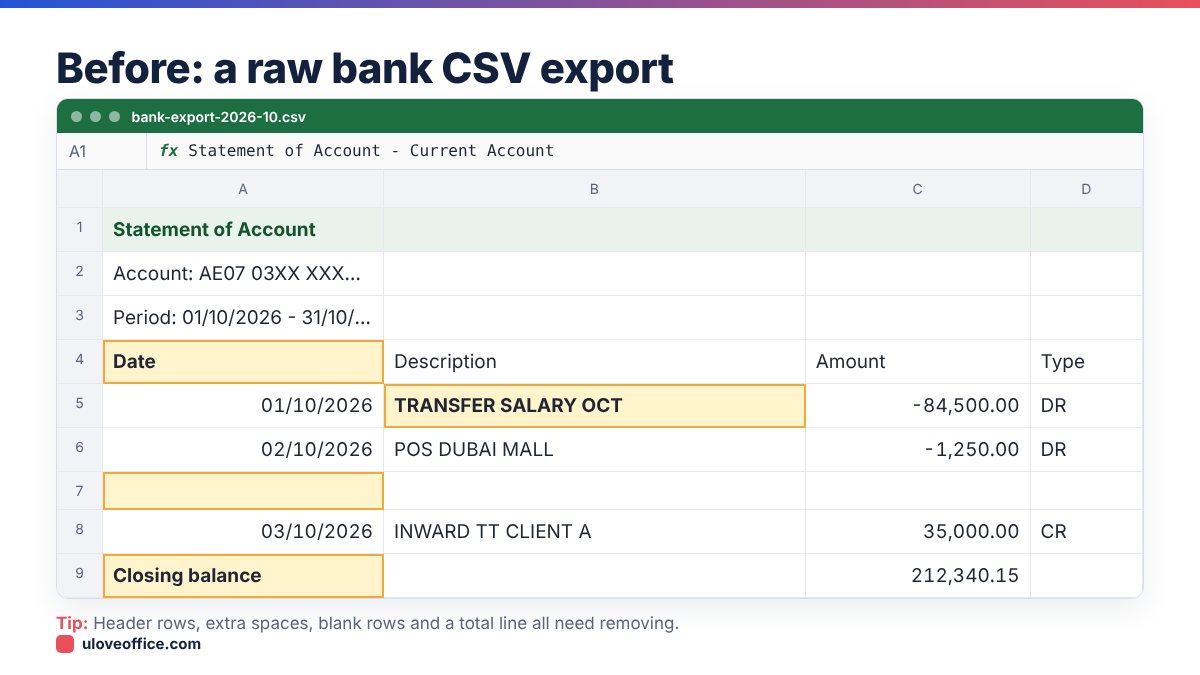
We will clean a typical bank statement export that many UAE businesses receive as CSV. The raw file has:
- Five lines of bank header information before the real headers.
- Dates as text in DD/MM/YYYY format.
- One “Amount” column with debits shown as negatives and a “CR”/”DR” label.
- Descriptions with extra spaces, and some in Arabic.
- Blank rows and a total line at the bottom.
Step 1: Load the file into Power Query
- Go to Data > Get Data > From File > From Text/CSV.
- Select the bank export.
- In the preview window, check the File Origin encoding. If Arabic text looks like random symbols, choose 65001: Unicode (UTF-8). Our guide on fixing garbled Arabic text in CSV files explains this further.
- Click Transform Data (not Load). The Power Query Editor opens.
Step 2: Remove the header junk
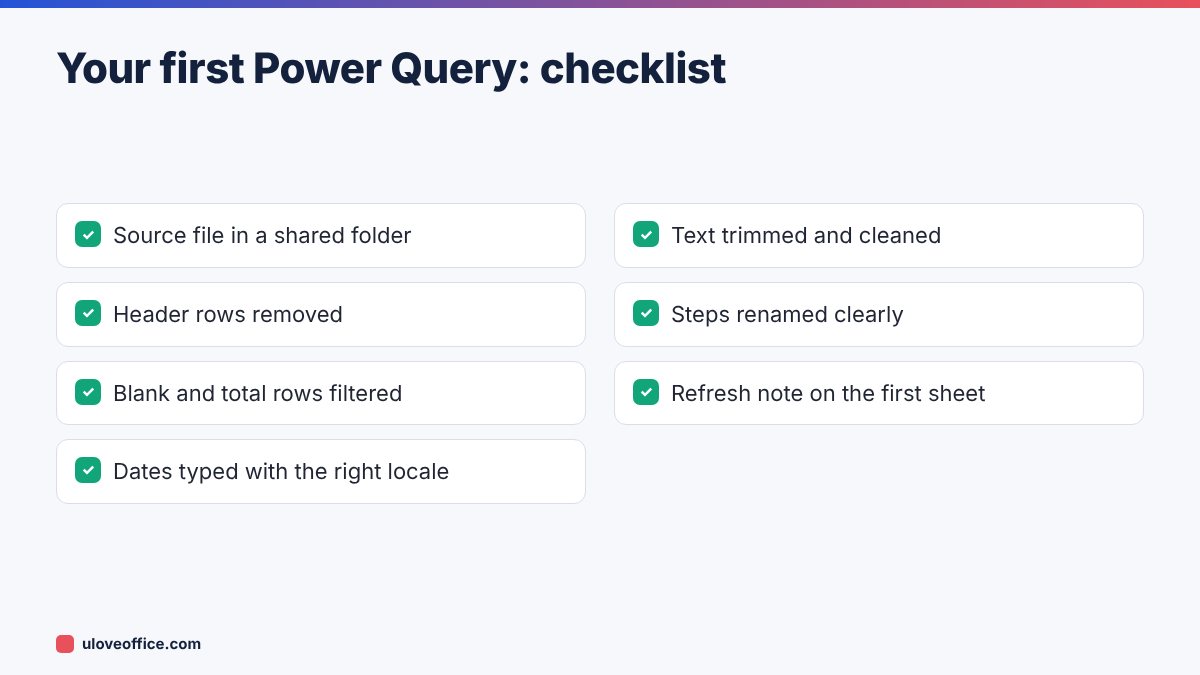
The real column headers are on row 4.
- Home > Remove Rows > Remove Top Rows, enter 3.
- Home > Use First Row as Headers.
Now the columns are called Date, Description, Amount and Type.
Step 3: Remove blank rows and the total line
- Click the filter arrow on Date and choose Remove Empty.
- The closing balance row still has text in the Date column. Use Home > Remove Rows > Remove Bottom Rows and enter 1, or filter out values that equal “Closing balance”.
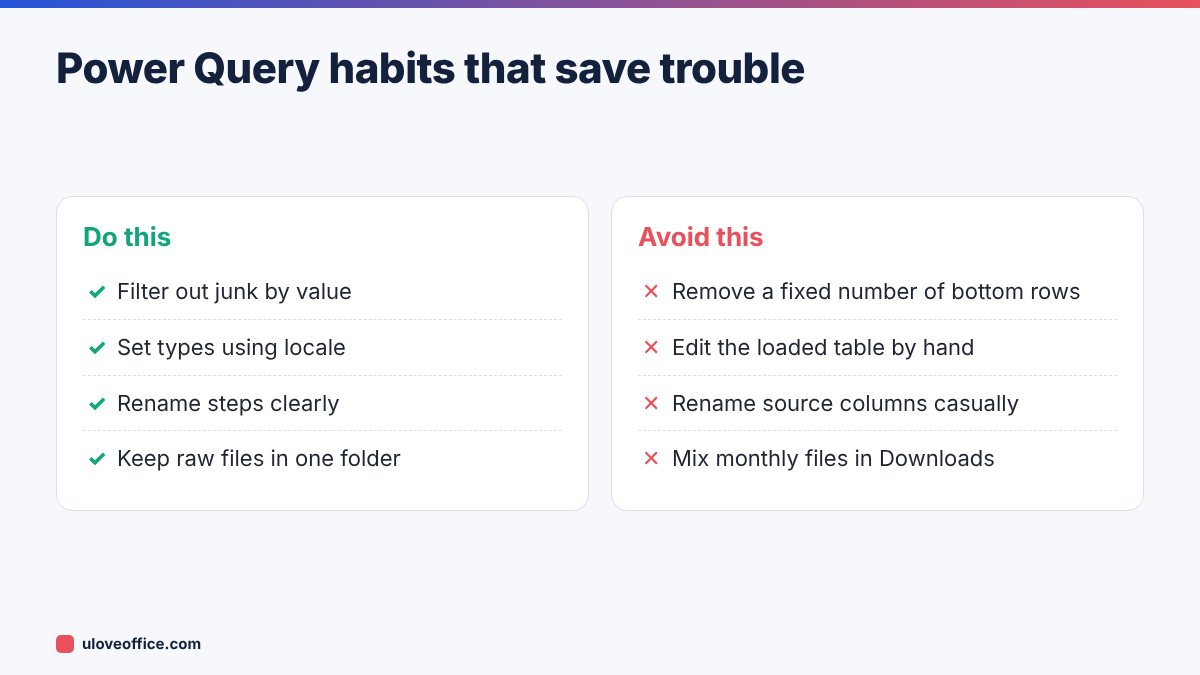
Filtering by value is more robust than removing a fixed number of rows, because next month’s file may have a different footer.
Step 4: Fix the data types
- Select the Date column. Go to Transform > Data Type > Using Locale, choose Date and locale English (United Kingdom) or Arabic (U.A.E.), so DD/MM/YYYY is read correctly.
- Select Amount and set the type to Decimal Number. If commas cause errors, use Using Locale with English (United Kingdom).
Using a locale is the key trick for UAE data. Without it, Excel may read 03/10/2026 as 10 March instead of 3 October.

Step 5: Clean the text
- Select Description. Go to Transform > Format > Trim to remove leading and trailing spaces.
- Then Transform > Format > Clean to remove invisible characters.
- To collapse double spaces inside text, use Transform > Replace Values, replace two spaces with one, and repeat the step once more if needed.
- Optionally use Format > UPPERCASE so “Client A” and “CLIENT A” are treated the same.
Arabic text is handled the same way. Trim and Clean work on Arabic descriptions too.
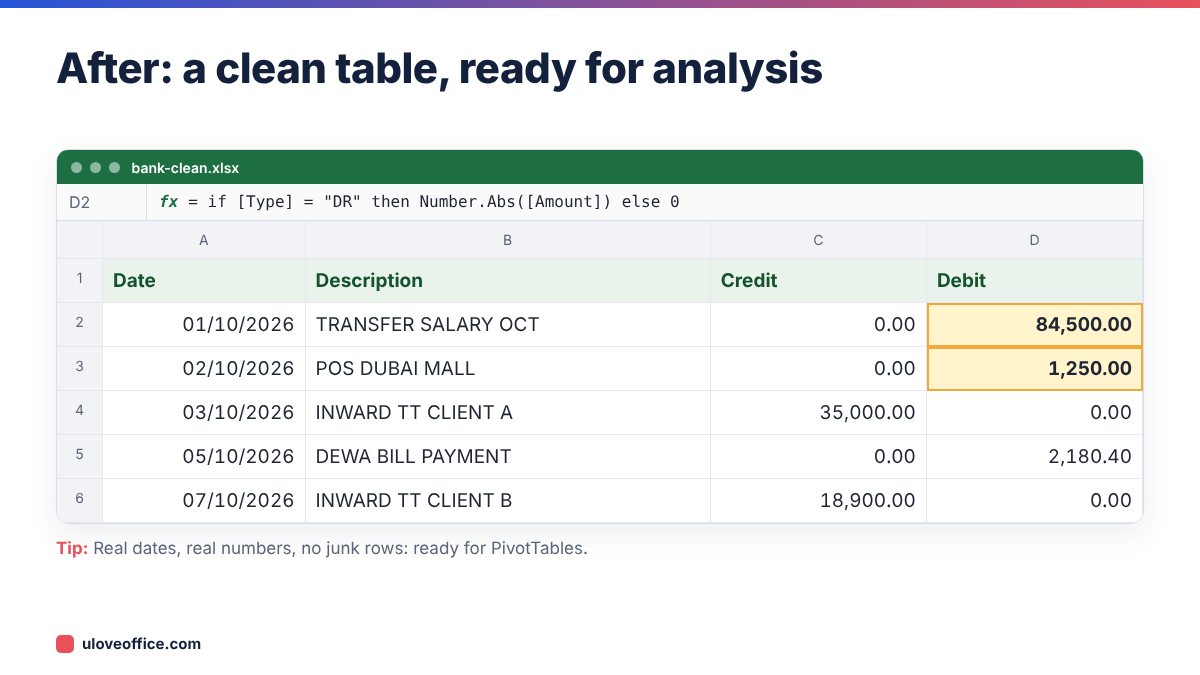
Step 6: Split amounts into Debit and Credit
Accountants often want separate columns.
- Add Column > Conditional Column. Name it Debit. If Type equals DR, output the absolute value of Amount; otherwise 0. (Use Add Column > Custom Column with
if [Type] = "DR" then Number.Abs([Amount]) else 0.) - Do the same for Credit with CR.
- Remove the original Amount and Type columns if you no longer need them.
Step 7: Load and use the clean table
Click Home > Close & Load. Excel creates a new sheet with a formatted table of clean data. You can now build a PivotTable, use SUMIFS or match against your ledger.
Next month: refresh in one click
This is where Power Query pays off. When November’s statement arrives:
- Option A: save the new CSV with the same file name and location as October’s, replacing it. Open your workbook and click Data > Refresh All.
- Option B: change the source. In Power Query, click the gear icon next to the Source step and browse to the new file.
Better still, save every monthly statement in one folder and use Get Data > From Folder to combine them all automatically. We explain this in our guide on how to combine multiple Excel files into one master workbook.
Getting data out of PDFs
Some banks and suppliers only send PDFs. Power Query in Microsoft 365 for Windows can import tables from PDF files via Get Data > From File > From PDF. If that option is not available, convert the PDF with PDF to Excel first, then load the Excel file into Power Query. For scanned PDFs, run OCR PDF before converting.

Other office tasks Power Query handles well
- Sales reports from an ERP with merged header cells and subtotals.
- Attendance exports from biometric machines, where each punch is a row.
- Supplier price lists in different layouts, standardised into one format.
- Unpivoting monthly columns (Jan, Feb, Mar…) into rows for PivotTables using Transform > Unpivot Columns.
- Merging two tables, like an employee list and a payroll export, using Home > Merge Queries, which works like a lookup without formulas.
- Removing duplicates across large lists with Home > Remove Rows > Remove Duplicates.
Common problems and fixes
“DataFormat.Error: We couldn’t parse the input as a Date.” The date format does not match. Use Change Type > Using Locale with the correct locale.
Refresh fails after the bank changed its export. A column was renamed or added. Open Power Query, look at the first step with an error and adjust it.
The file path changed. Edit the Source step or use a folder query.
Numbers load as text. Check for currency symbols or spaces. Use Replace Values to remove “AED” or spaces, then set the type.
Arabic text is garbled. Change the File Origin to UTF-8 in the Source step.
Sharing a Power Query workbook with your team
A Power Query report only saves time if others can use it when you are on leave. A few habits make that possible:
- Store source files in a shared location, such as a OneDrive or SharePoint folder, not on your desktop.
- Rename every step in Applied Steps so it describes what it does, for example “Remove bank header rows” instead of “Removed Top Rows”. Right-click a step and choose Rename.
- Add a “How to refresh” note on the first sheet: where to save the new file, what to click and who to call if it fails.
- Use a parameter for the file path (Home > Manage Parameters) so a colleague can point the query at a new location without editing steps.
- Protect the output sheet so nobody types over the loaded table; any manual change disappears on the next refresh anyway.
Power Query vs formulas vs macros
Formulas such as TRIM, TEXTSPLIT and DATEVALUE can clean data too, but they live alongside the messy data and need copying down every month. Macros (VBA) can automate cleaning, but they are hard for most office staff to read and are often blocked by security settings. Power Query sits in between: no code, visible steps and a refresh button. For recurring imports, it is usually the best choice. For one-off fixes on a small sheet, a formula is fine. Our guides on the Excel TEXTSPLIT function and on splitting full names into columns cover the formula approach.
📘 Continue reading
Frequently asked questions
Is Power Query free?
Yes. It is built into Excel for Windows (2016 and later, and Microsoft 365) and recent Excel for Mac versions.
Do I need to learn the M language?
No. Everything in this guide uses buttons. M appears in the formula bar if you want to learn it later.
Will my colleagues be able to refresh the file?
Yes, if they have access to the source file location. Use a shared folder rather than your Downloads folder.
Does Power Query change my original CSV?
No. It only reads the source.
Conclusion
Power Query turns a monthly chore into a one-click refresh. Load your messy export, record the cleaning steps (remove junk rows, set types with the right locale, trim text, add the columns you need) and load a clean table. Next month, replace the file and refresh. Once you have done it for one report, you will find a dozen more to automate.
Last checked: 9 November 2026.