
How to extract invoice data from PDFs with AI (and check it in Excel)
Quick answer: To extract invoice data with AI, first make scanned invoices searchable with OCR PDF. Then give an AI assistant (using your company-approved plan) a clear prompt listing the fields you want, such as supplier name, TRN, invoice number, date, net amount, VAT and total, and ask for the answer as a table. Paste the table into Excel and run three checks: net + VAT = total, VAT = 5% of net for standard-rated invoices, and TRN has 15 digits. Fix flagged rows against the original PDF before you post anything.
Typing supplier invoices into a spreadsheet or accounting system is one of the most common and least loved office tasks. AI can do most of the reading for you. But AI also makes confident mistakes, so the real skill is building a workflow that catches them. This guide gives you both.
When this approach makes sense
AI extraction works well for:
- Small and medium volumes, from a few dozen to a few hundred invoices a month.
- Mixed supplier formats, where template-based OCR tools struggle.
- One-off projects, such as cleaning up a year of old invoices for an audit or a VAT review.
- Data clean-up before e-invoicing, when you need supplier TRNs and names in a list.
From 2027, many of your suppliers will send structured e-invoices under the UAE e-invoicing mandate, which arrive as data and need no extraction at all. Until then, and for suppliers outside the mandate (overseas suppliers, B2C receipts, pre-2027 archives), PDF extraction remains useful.
Before you start: privacy check
Invoices contain business information, and sometimes personal data and bank details. Before uploading anything to an AI tool:
- Use a company-approved AI plan whose terms say your data is not used for training.
- Remove bank account details if you do not need them, using Redact PDF.
- Check whether supplier contracts restrict sharing their documents.
Our guide on whether it is safe to upload company documents to ChatGPT covers this in detail.
Step 1: Collect and prepare the PDFs
Put the invoices for one period in one folder. Name them consistently if you can, for example 2026-10_SupplierName_InvoiceNo.pdf.
- Scans and phone photos: convert photos to PDF with JPG to PDF, then run OCR PDF. For Arabic invoices, check the OCR handles Arabic text.
- Large batches: merge invoices into files of 10 to 20 with Merge PDF. Very large files make AI more likely to skip pages.
- Rotated pages: fix them with Rotate PDF, as sideways text reduces accuracy.
Step 2: Use a structured prompt
Vague prompts get vague results. Tell the AI exactly what you want, in what format, and what to do when it is unsure.
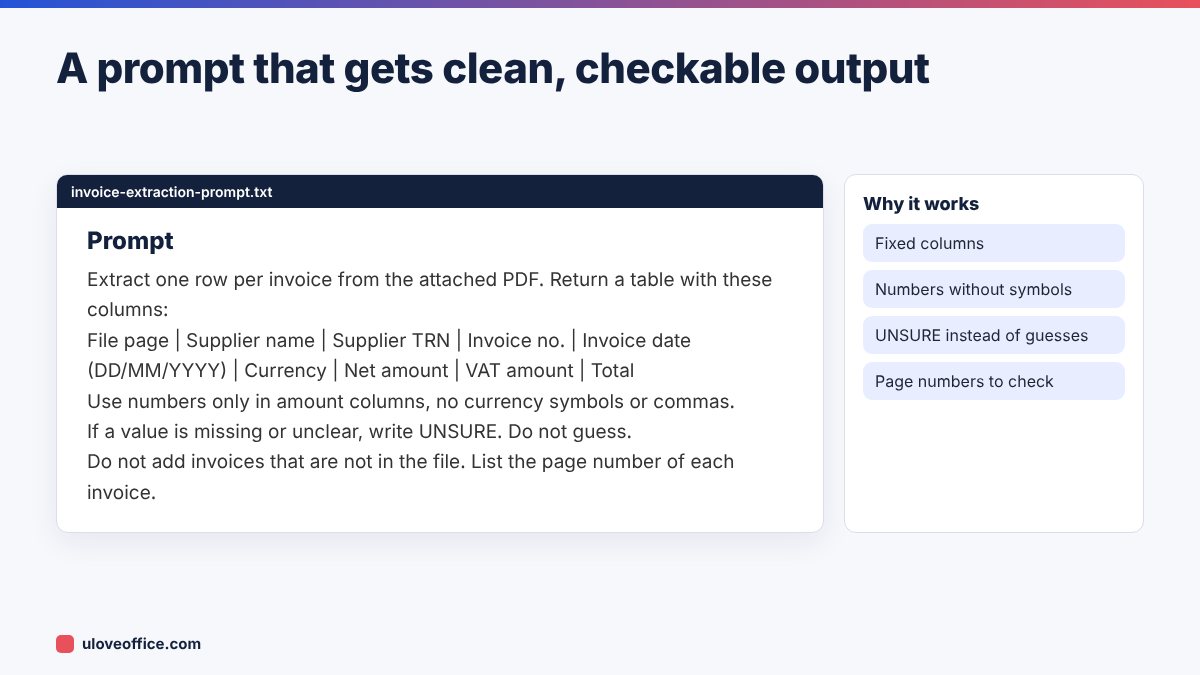
Key points in the prompt:
- Fixed column list so every batch has the same layout.
- Date format stated explicitly, because AI may otherwise switch to MM/DD/YYYY.
- Numbers only in amount columns, so Excel recognises them.
- “Write UNSURE, do not guess”, which reduces invented values.
- Page numbers, so you can find each invoice quickly when checking.
Step 3: Paste the results into Excel
Copy the table from the AI output and paste it into Excel. If it pastes into one column, use Data > Text to Columns with the pipe character as the delimiter, or ask the AI to output CSV.
Format the range as a table (Ctrl+T) called tblInvoices. Set the date column to Date format and amount columns to Number with two decimals. If dates arrived as text, use the method in our Excel date formulas guide to convert them.
Step 4: Add check columns
This is the step that makes AI extraction safe. Add these columns to the table:
- Total check:
=IF(ABS([@Net]+[@VAT]-[@Total])<=0.05,"OK","CHECK") - VAT rate check:
=IF([@Net]=0,"",IF(ABS([@VAT]/[@Net]-0.05)<=0.002,"5%","CHECK")) - TRN check:
=IF(LEN(SUBSTITUTE([@TRN]," ",""))=15,"OK","CHECK") - Duplicate check:
=IF(COUNTIFS([Supplier],[@Supplier],[Invoice no.],[@[Invoice no.]])>1,"DUPLICATE","") - Unsure flag:
=IF(COUNTIF(tblInvoices[@],"UNSURE")>0,"CHECK","")
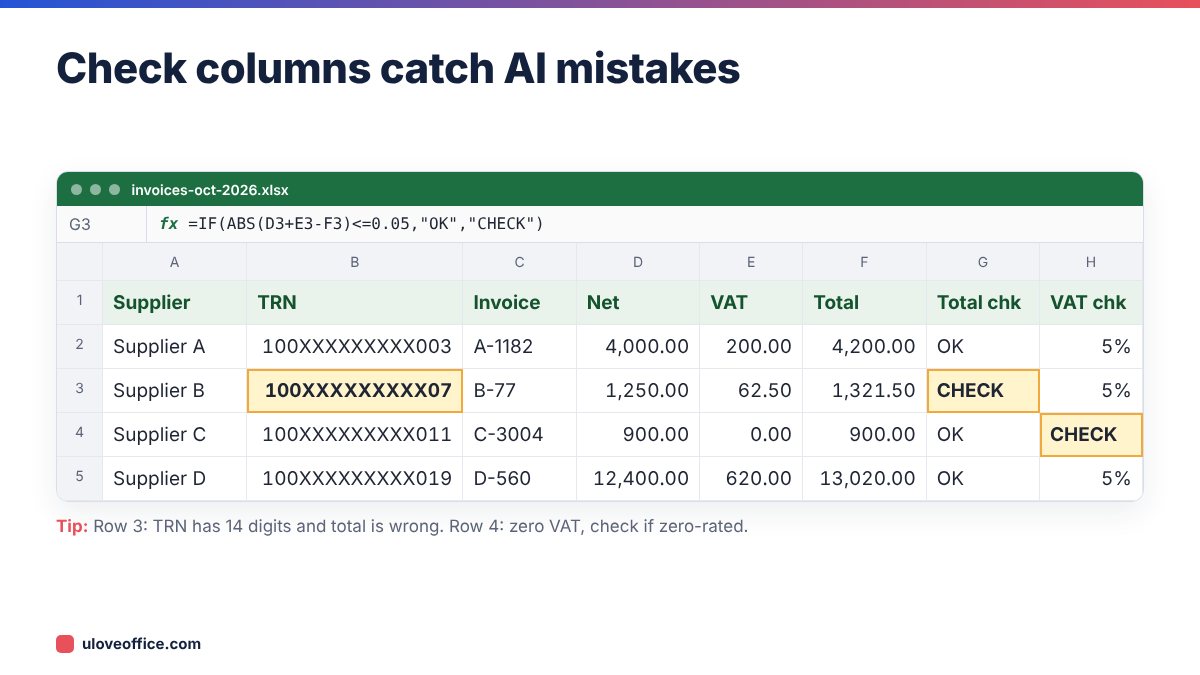
Then filter for “CHECK”, “DUPLICATE” and “UNSURE”, open each flagged invoice at the listed page and correct the row.
Step 5: Spot-check rows that passed
Checks catch arithmetic errors but not everything. An AI can read the wrong supplier name or swap the invoice date with the delivery date, and the totals will still add up. Spot-check a sample of rows that passed, for example every tenth row, plus every invoice above a threshold such as AED 10,000.
Common AI extraction errors
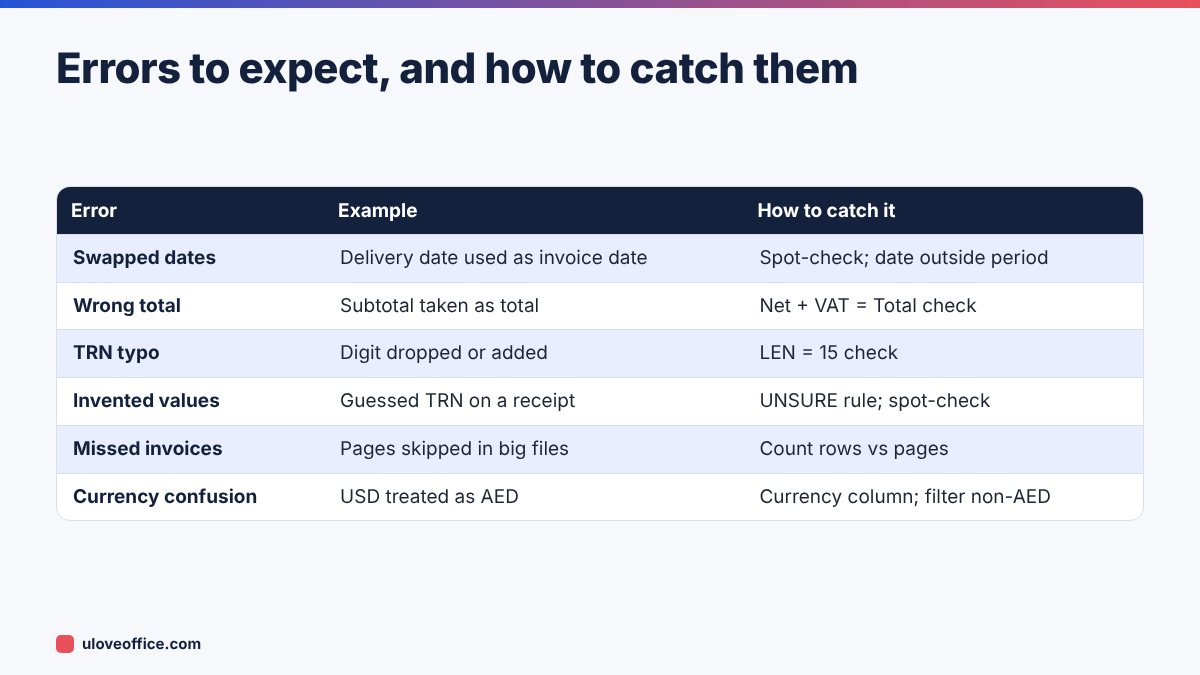
Count check: compare the number of rows with the number of invoices in the folder. If you had 48 invoices and the table has 46 rows, find the missing two before doing anything else.
Turning the table into something useful
Once the data is clean, you can:
- Post to your accounting system via import, if it accepts Excel or CSV.
- Build a supplier spend summary with a PivotTable by supplier and month.
- Reconcile input VAT for your VAT return: the total VAT column should match the input VAT you claim.
- Create a supplier master list with names and TRNs, useful for e-invoicing preparation.
Choosing between AI, OCR software and PDF to Excel
- PDF to Excel conversion (PDF to Excel) works best when invoices have clean tables and you want line items exactly as laid out.
- AI extraction works best when formats vary and you want a fixed set of header fields.
- Dedicated invoice-capture software suits high volumes with approval workflows, but has a cost.
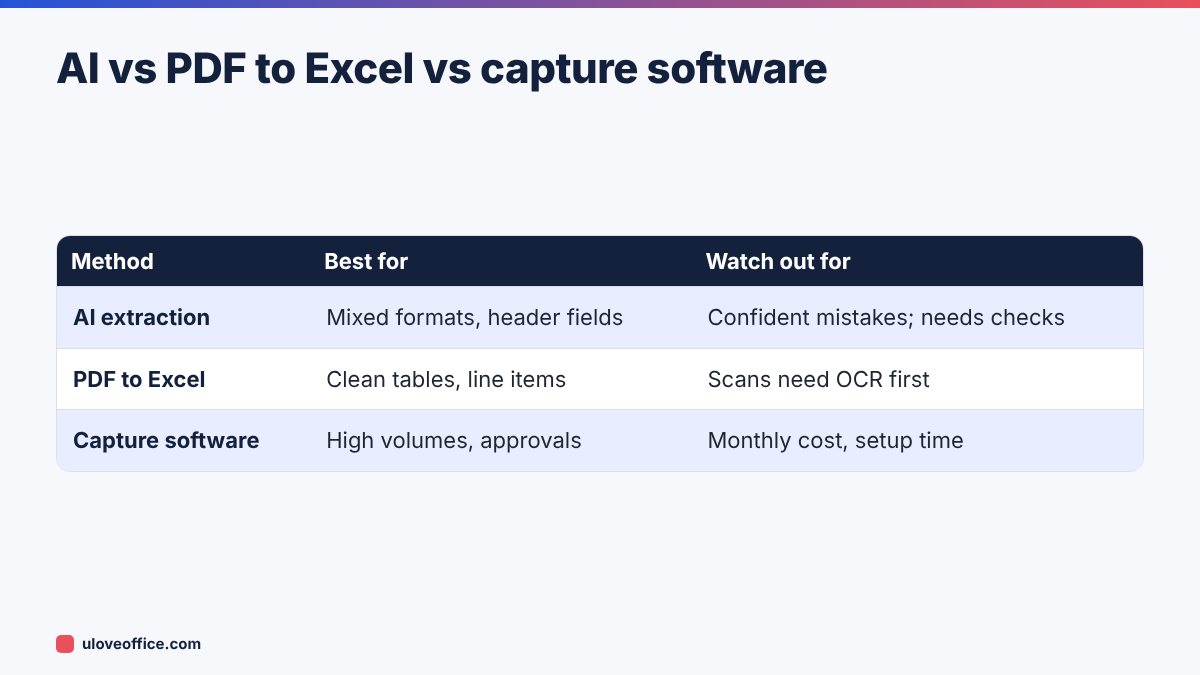
Many offices combine them: PDF to Excel for a regular supplier with a long line-item table, AI for the mixed pile of smaller invoices.
Building a monthly routine
- During the month, save every supplier invoice into the month folder.
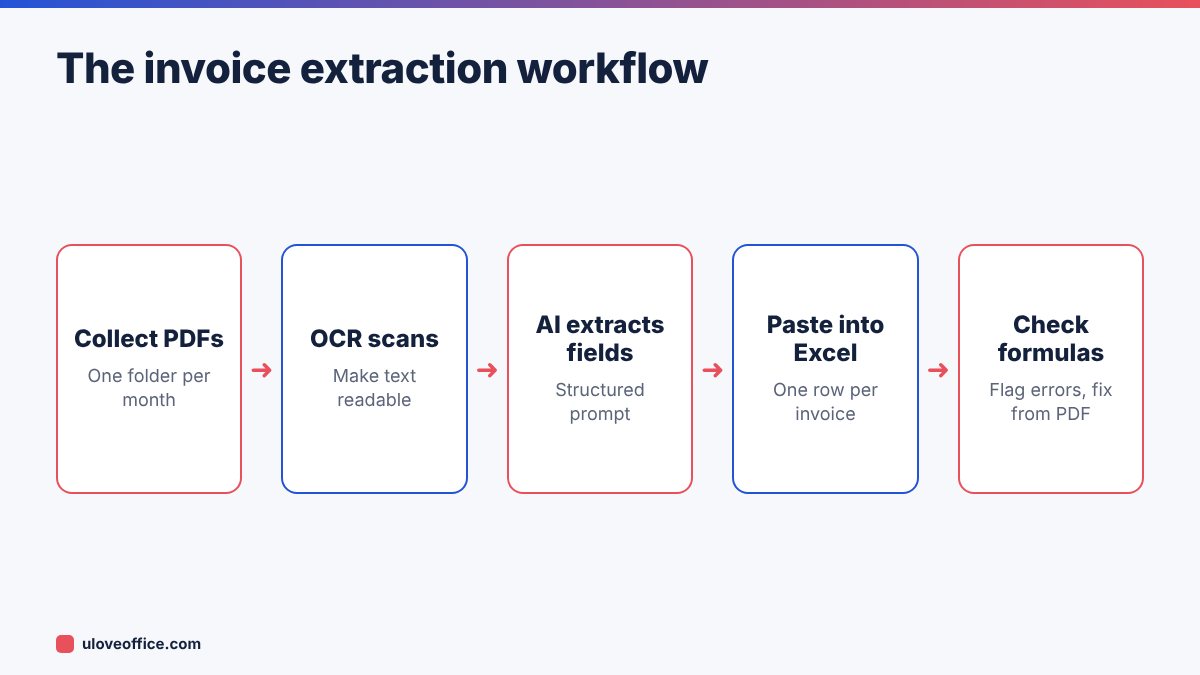
- On the first working day, OCR and merge into batches.
- Run the prompt for each batch and paste results into the month’s table.
- Filter and fix all flags, then spot-check.
- Post or import, and archive the PDFs as PDF/A.
For 100 invoices, expect about an hour instead of most of a day of typing.
Worked example: 48 invoices for October
A Dubai interiors company receives about 50 supplier invoices a month from 20 suppliers, in English and Arabic, some as phone photos. Here is how October went with this workflow:
- Preparation (15 minutes): 11 phone photos converted to PDF, 19 scans run through OCR, everything merged into four batches of about 12 invoices.
- Extraction (10 minutes): the prompt was run once per batch, and the four tables were pasted into one Excel table.
- Count check: 48 PDFs in the folder, 47 rows in the table. The missing invoice was a two-page invoice the AI had merged with the next one. Re-running that batch fixed it.
- Flags (20 minutes): six rows flagged. Two TRNs with a missing digit, one total that picked up the subtotal, one USD invoice marked as AED, one duplicate (the same invoice sent twice by email) and one zero-VAT invoice that turned out to be correctly zero-rated.
- Spot-check (10 minutes): five rows checked at random and every invoice over AED 10,000. One invoice date was the delivery date; corrected.
Total time: under an hour, compared with about four hours of manual typing previously. More importantly, the checks caught seven errors that would otherwise have reached the accounts.
Tips for better accuracy
- Ask for one batch per supplier when a supplier sends many invoices in the same layout. Accuracy improves when formats are consistent.
- Give the AI an example row from a known invoice in the prompt. It then copies the format exactly.
- Ask it to quote the text it used for the total and TRN in extra columns during testing. This shows you where it is reading from.
- Keep your prompt in a shared document so everyone on the team uses the same version.
📘 Continue reading
Frequently asked questions
Which AI tool is best for invoice extraction?
Most major assistants handle it well. Use the one your company has approved under a business plan, and test it on 20 invoices you already know before relying on it.
Can AI read Arabic invoices?
Generally yes, especially after good OCR. Check names and numbers carefully, as mixed Arabic and English layouts cause more errors.
Can I extract line items too?
Yes, ask for one row per line with an invoice number column. Check line totals add up to the invoice net amount.
Is AI extraction accurate enough for VAT returns?
Only after the checks in this guide. You remain responsible for the figures you file.
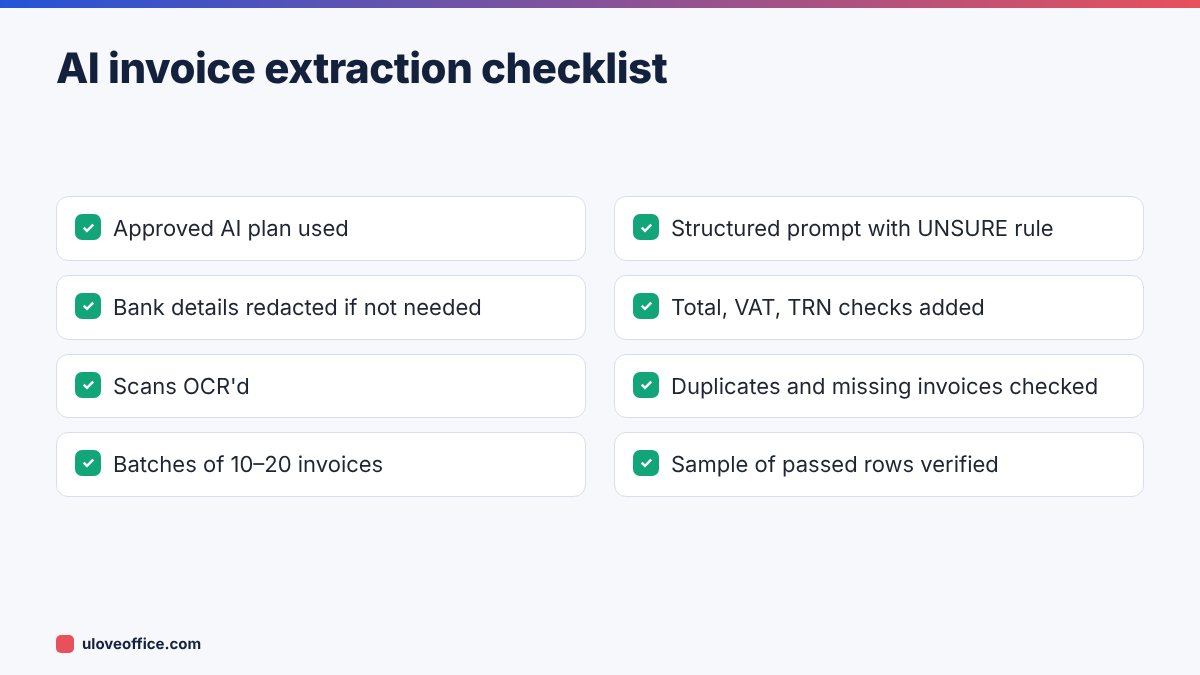
Key takeaways
- OCR scans and split large batches before asking AI to extract data.
- Use a structured prompt with fixed columns, a date format and an “UNSURE” rule.
- Add check columns for totals, VAT rate, TRN length and duplicates.
- Compare row counts with the number of invoices, then fix every flag from the original PDF.
- Spot-check rows that passed, especially high-value invoices.
- Use an approved AI plan and redact what the AI does not need.
Conclusion
AI can take most of the typing out of invoice processing, but only a checking step makes it trustworthy. OCR your scans, use a structured prompt that says “UNSURE” instead of guessing, paste into Excel, add total, VAT, TRN and duplicate checks, fix every flag from the original PDF and spot-check the rest. You get speed without giving up accuracy.
Last checked: 9 November 2026.