
How to turn receipt photos into an expense spreadsheet with AI
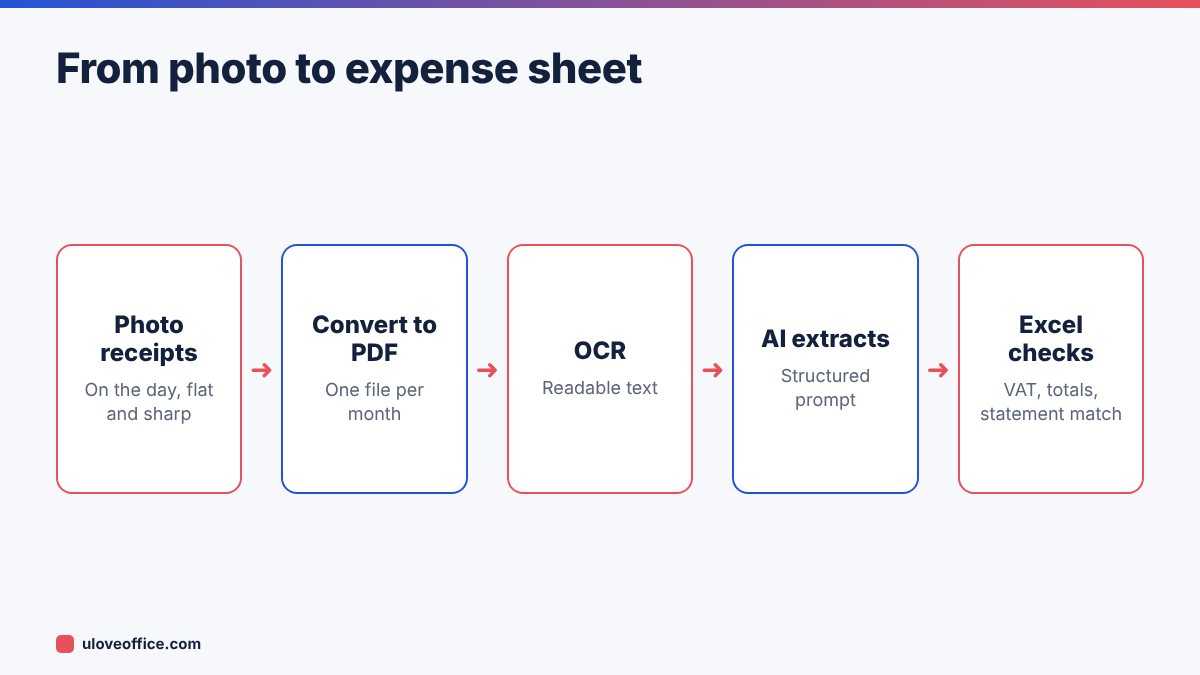
Quick answer: Photograph receipts on the day, convert the month’s photos into one PDF with JPG to PDF, make it searchable with OCR PDF, then ask an AI assistant (on your company-approved plan) to extract date, merchant, category, total, VAT shown and payment method into a table, one row per receipt, writing “UNSURE” when it cannot read a value. Paste the table into Excel, calculate VAT where it is not shown with =Total*5/105, flag which receipts are full tax invoices, and check totals against your card statement before submitting.
If you are a freelancer, a salesperson on the road or an office manager handling petty cash, you probably have dozens of receipt photos each month. Typing them into a spreadsheet is slow. With AI, the reading takes minutes; the checking still matters, and this guide shows how to do both.
What makes receipts harder than invoices
Receipts are messier than supplier invoices:
- Thermal paper fades and curls, so photos can be faint.
- Layouts vary wildly between supermarkets, taxis, cafés and petrol stations.
- Many are not tax invoices. A POS receipt may show VAT but not your company details, and a card slip shows only the amount paid.
- Mixed languages: Arabic and English on the same slip.
- Long receipts with many items, where you only need the total.
So the aim is not to capture every line item, but a clean header record for each receipt: who, when, what for, how much, how much VAT and what kind of document.
Step 1: Capture good photos
AI accuracy starts with the photo. Tips:
- Lay the receipt flat on a dark surface for contrast.
- Photograph straight from above, all four edges visible.
- Use daylight or good lighting; avoid flash glare.
- One receipt per photo.
- Take the photo on the day; thermal ink fades quickly in a hot car.
- Use your phone’s document scanner mode (Notes on iPhone, Google Drive scan on Android) for automatic straightening.
If your iPhone saves HEIC files, convert them to JPG first; our HEIC to JPG guide explains how.
Step 2: Convert and OCR
At month end:
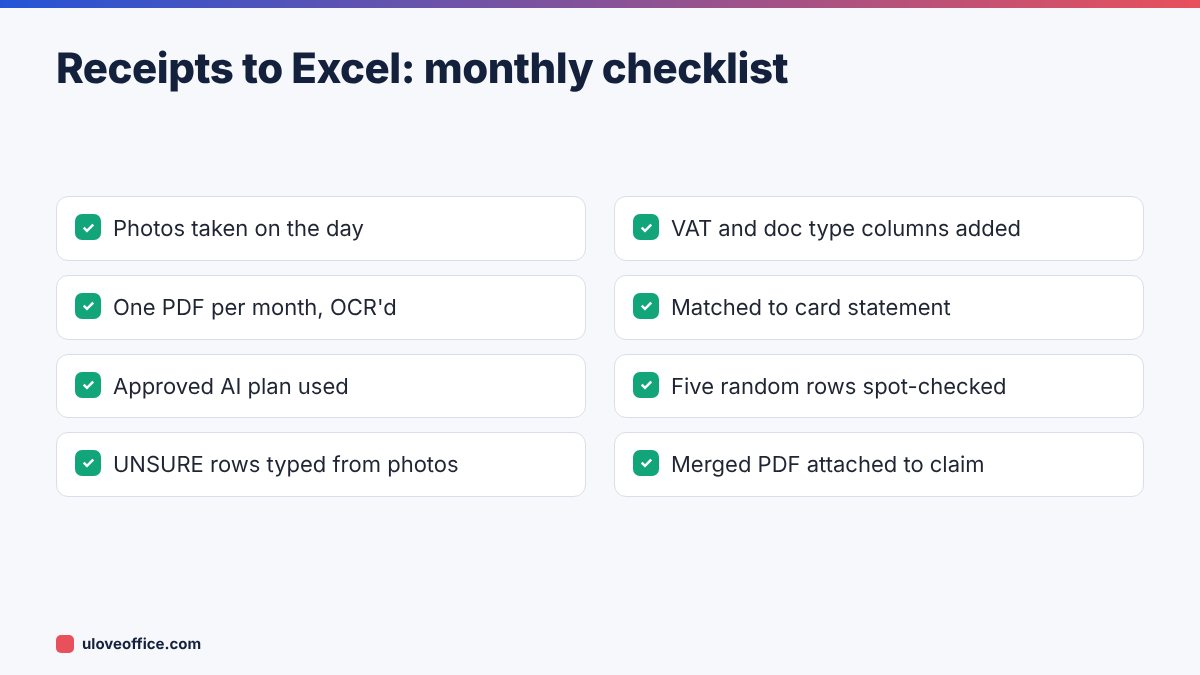
- Upload all receipt photos to JPG to PDF, ordered by date, and create one PDF.
- Run OCR PDF on it so the text is machine-readable, including Arabic where supported.
- If the file is large, use Compress PDF or split it into batches of 15 to 20 receipts with Split PDF.
Keep the original photos as well; they are your evidence if a figure is questioned.
Step 3: Extract with a structured prompt
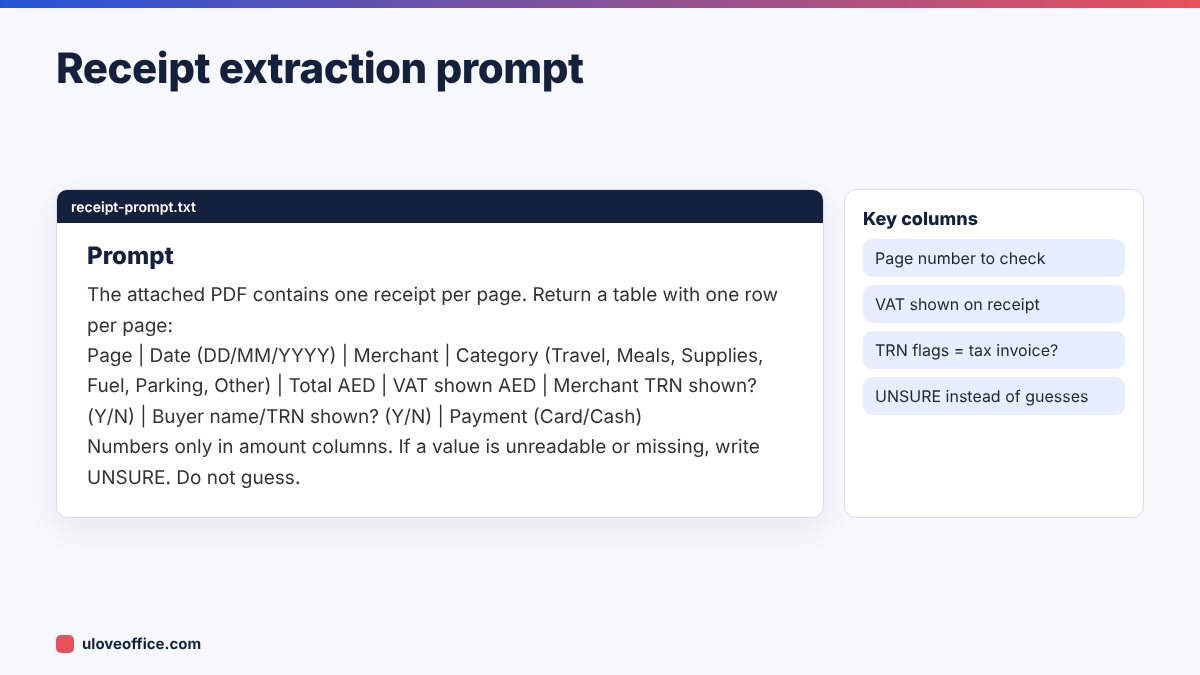
The two TRN columns are important. A document that shows the merchant’s TRN and the VAT amount may be a simplified tax invoice; one that also shows your company’s name and TRN is a full tax invoice. A card slip with neither is proof of payment only. Your accountant decides the VAT treatment, but these flags help.
Step 4: Paste into Excel and add formulas
Paste the result into Excel and format it as a table called Receipts. Add columns:
- VAT calc: for receipts where VAT is not shown but the merchant is VAT-registered and the total includes 5% VAT:
=ROUND([@Total]*5/105, 2). - Net:
=[@Total] - [@[VAT shown]](or the calculated VAT). - Doc type:
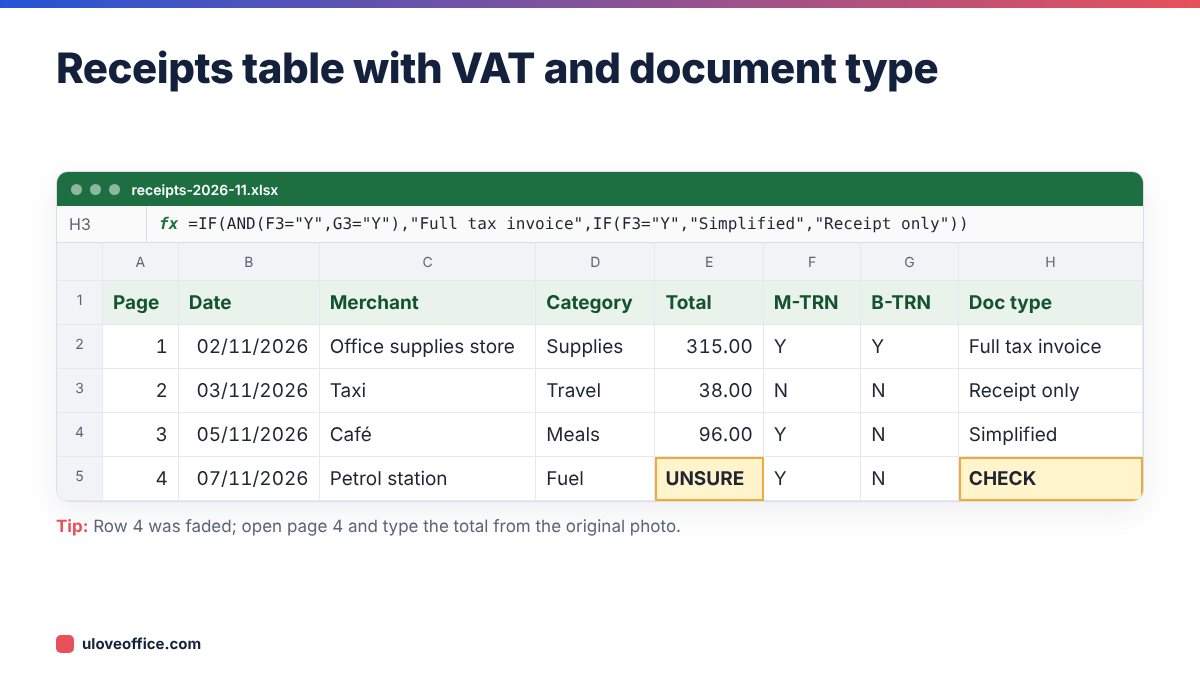
=IF(AND([@[Merchant TRN]]="Y",[@[Buyer TRN]]="Y"),"Full tax invoice",IF([@[Merchant TRN]]="Y","Simplified","Receipt only")) - Flag:
=IF(COUNTIF(Receipts[@],"UNSURE")>0,"CHECK","")
Step 5: Check against your statement
The most important check: compare the receipts with your card or bank statement.
- Export the month’s card statement (unlock it first with Unlock PDF and convert with PDF to Excel if it arrives as a protected PDF).
- Match each card transaction to a receipt by date and amount. A helper column with
=COUNTIFS(Receipts[Date],[@Date],Receipts[Total],[@Amount])shows 1 for a match, 0 for no receipt. - Card transactions with no receipt: find the receipt or note it as missing.
- Receipts with no card transaction: cash payments, or personal card payments to claim.
- Compare totals: total of card receipts should equal the business transactions on the statement.
Also spot-check: open five random receipts and compare every field with the table.

Step 6: Summarise and submit
With a clean table you can:
- Build a summary by category with a PivotTable or
=GROUPBY(Receipts[Category], Receipts[Total], SUM)in Microsoft 365. - Fill in your company’s expense claim form; see our expense reimbursement policy guide.
- Give your accountant the VAT summary: total VAT on full and simplified tax invoices, separately from receipt-only items.
- Attach the merged receipts PDF, in the same order as the table, so every row can be checked.
Privacy and accuracy
Receipts can contain card digits, names and loyalty numbers. Use an approved AI plan, and do not upload receipts for personal purchases. AI can misread faded digits, so the statement match and spot-checks are not optional. You remain responsible for the expense claim and any VAT recovered. Our guide on whether it is safe to upload company documents to ChatGPT covers data protection in more detail.
Worked example: a sales manager’s month
A sales manager in Abu Dhabi collected 34 receipts in November: fuel, parking, client coffees, two hotel nights in Dubai and some printing. Using this workflow:
- Photos were taken daily; at month end, one PDF of 34 pages was created and OCR’d.
- The AI returned 34 rows; three were marked UNSURE (two faded fuel receipts and one crumpled parking ticket). She typed those from the original photos.
- Matching against the card statement found one missing receipt (a hotel parking charge). The hotel emailed it the same day.
- The table identified six full tax invoices (hotel and printing), worth AED 212 of input VAT for the company.
Total time: about 35 minutes, compared with roughly two hours of typing, and the claim was approved without questions.
Improving accuracy over time
Keep a short note of the errors you correct each month. If the same merchant’s receipts are always misread, for example a petrol station whose total sits next to a loyalty points figure, add a line to your prompt: “For fuel receipts, the total is the amount labelled TOTAL AED, not the points balance.” If dates are often swapped, repeat the format instruction and give an example. After two or three months, your prompt will reflect your own receipts and accuracy will improve noticeably.
Common mistakes
- Uploading blurry photos and expecting perfect results.
- Treating VAT shown on a simplified receipt as automatically recoverable.
- Skipping the statement match.
- Claiming personal receipts mixed in the camera roll.
- Deleting photos after extraction; keep them as evidence.
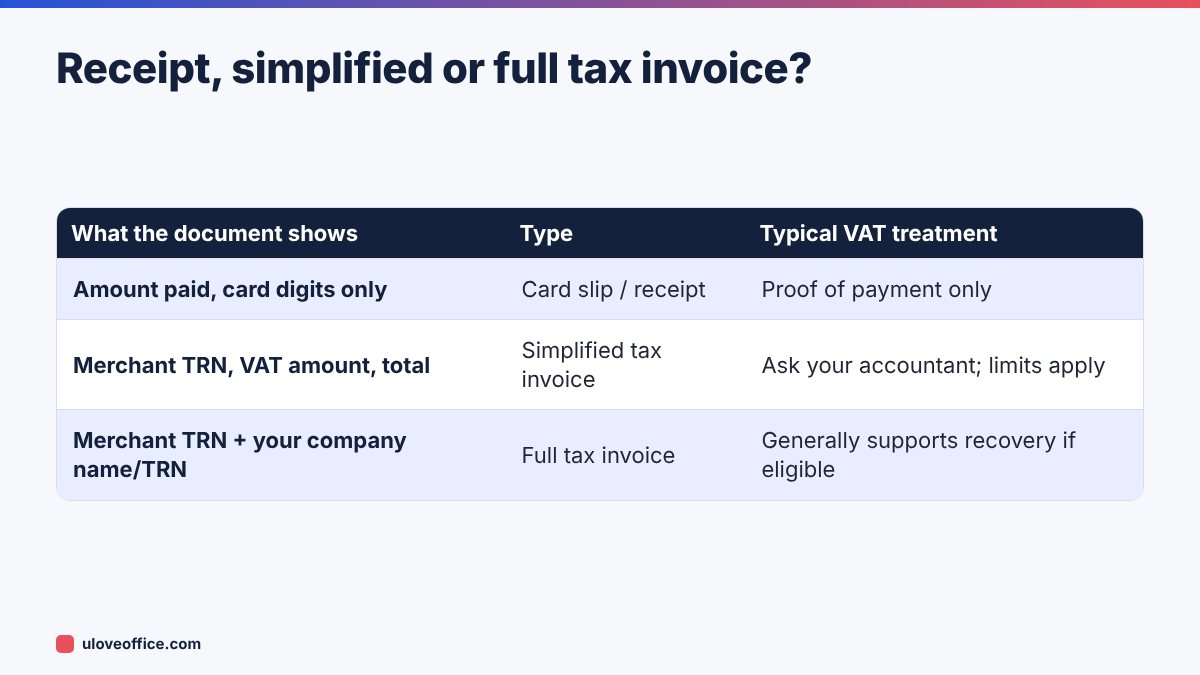
For larger business purchases, ask the merchant for a full tax invoice with your company details at the time of purchase; it is much harder to obtain later.
Making it a monthly habit
The workflow only saves time if it becomes routine. A simple schedule:
- Daily: photograph receipts the moment you get them, and save emailed receipts to the same folder.
- Weekly: spend five minutes checking that the week’s photos are clear and that nothing is missing from your card’s recent transactions.
- Month end: convert, OCR, extract, check and submit, ideally within the first three working days.
Create an album or folder on your phone called “Receipts 2026-11” each month so business receipts never mix with personal photos. If your company uses an expense app with receipt capture, the same principles apply: capture on the day, check against the statement, keep tax invoices separate.
When to use dedicated expense software instead
This AI and Excel workflow suits individuals and small teams. Consider a dedicated expense management app when:
- More than a handful of people submit claims every month.
- You need approval workflows, policy rules and audit trails built in.
- Company cards are issued to many staff and need automatic statement matching.
- Your accounting system can import approved expenses directly.
Even then, the skills in this guide, such as recognising tax invoices and matching to statements, remain useful for checking what the software produces.
Key takeaways
- Good photos on the day make AI extraction accurate.
- Convert to one PDF and OCR before asking AI to read it.
- Use a prompt with fixed columns, TRN flags and an UNSURE rule.
- Calculate VAT and document type in Excel, then match to your card statement.
- Keep the photos and the merged PDF as evidence for every row.
📘 Continue reading
Frequently asked questions
Can AI read Arabic receipts?
Usually yes, especially after OCR. Check merchant names and amounts carefully.
Do I still need the paper receipts?
Keep clear photos or scans; keep paper for high-value items or where your accountant asks. Thermal paper fades anyway.
Which AI tool should I use?
Use the one your company approves under a business plan. Test it on ten receipts you already know.
Can I do this on my phone?
Mostly, yes. The Excel checks are easier on a laptop.
Conclusion
AI can turn a month of crumpled receipts into a tidy expense sheet in under an hour. Capture good photos on the day, convert and OCR them, extract with a structured prompt, calculate VAT and document type in Excel, match to your card statement and spot-check. You save hours of typing and submit claims your manager and accountant can trust.
Last checked: 9 November 2026.