
Accounts receivable aging report in Excel: formulas and template
Quick answer: An accounts receivable (AR) aging report lists unpaid customer invoices and groups them by how long they have been outstanding, usually current, 1–30, 31–60, 61–90 and over 90 days past due. In Excel, start with a table of open invoices (customer, invoice number, invoice date, due date, amount outstanding), calculate days overdue with =MAX(0, ReportDate - DueDate), assign a bucket with a lookup or IFS formula, then summarise by customer and bucket with SUMIFS, a PivotTable or PIVOTBY. Use the report weekly to decide which customers to call.
Unpaid invoices are cash your business has earned but cannot use. In the UAE, where payment terms of 60 to 90 days are common and post-dated cheques still circulate, an aging report is one of the most practical tools a small business can have. It shows who owes what, how late they are, and where to focus collection effort.
What you need
- A list of open (unpaid or part-paid) invoices, exported from your accounting software or kept in Excel.
- For each invoice: customer, invoice number, invoice date, due date (or payment terms), original amount and amount outstanding after part payments and credit notes.
- A report date, usually today or month end.
If your accounting system already produces an aging report, you may still want an Excel version to add notes, actions and charts. If invoices only exist as PDFs, convert them with PDF to Excel or see our guide on extracting invoice data from PDFs with AI.
Step 1: Build the open invoices table
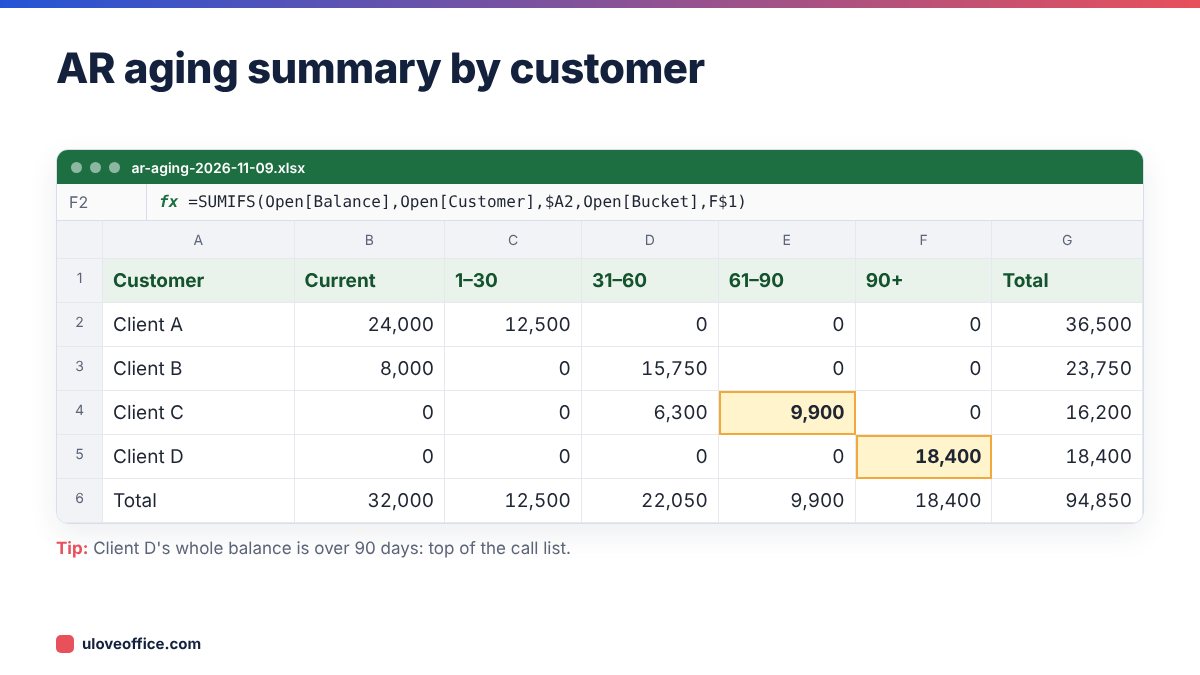
Create a table (Ctrl+T) called Open with these columns:
| Customer | Invoice | Invoice date | Due date | Amount | Paid | Balance |
- Due date: if you only have terms, calculate it:
=[@[Invoice date]] + [@Terms]where Terms is the number of days (30, 60, 90). - Balance:
=[@Amount] - [@Paid].
Put the report date in a named cell, ReportDate, at the top of the sheet. Use a fixed date (such as month end) for official reports, or =TODAY() for a live view.
Step 2: Calculate days overdue
Add a column Days overdue:
=MAX(0, ReportDate - [@[Due date]])
MAX(0, …) turns not-yet-due invoices into zero. Some businesses age by invoice date instead of due date (days since invoice). Decide which, write it on the report, and be consistent. Aging by due date is more useful for collections; aging by invoice date is common in some accounting systems.
Step 3: Assign aging buckets
Add a column Bucket. In Microsoft 365 or Excel 2019+, use IFS:
=IFS([@[Days overdue]]=0, "Current", [@[Days overdue]]<=30, "1–30", [@[Days overdue]]<=60, "31–60", [@[Days overdue]]<=90, "61–90", TRUE, "90+")
Or, more flexibly, use a small lookup table of bucket limits:
| From | Bucket |
|---|---|
| 0 | Current |
| 1 | 1–30 |
| 31 | 31–60 |
| 61 | 61–90 |
| 91 | 90+ |
Then: =XLOOKUP([@[Days overdue]], Buckets[From], Buckets[Bucket], , -1) (match mode -1 finds the nearest smaller value). With VLOOKUP: =VLOOKUP([@[Days overdue]], Buckets, 2, TRUE). Changing bucket limits later means editing the small table, not every formula.
Step 4: Summarise by customer
Choose the method that suits your Excel version:
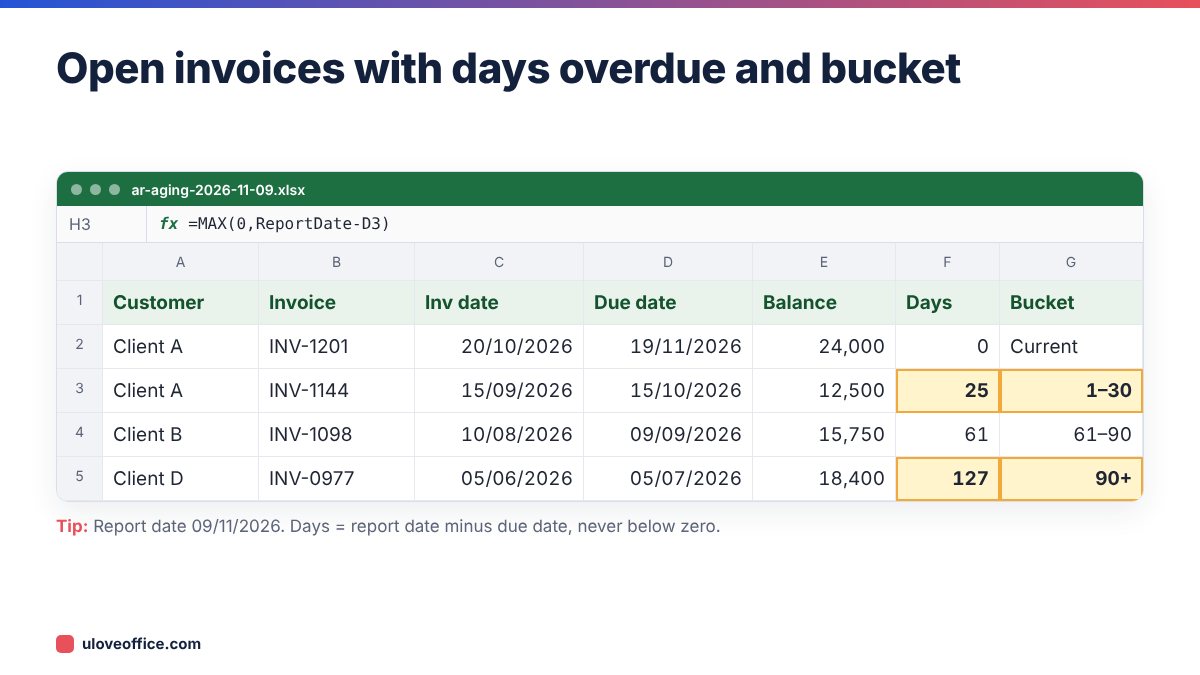
- SUMIFS (any version): create a summary table with customers down the side and buckets across the top. In each cell:
=SUMIFS(Open[Balance], Open[Customer], $A2, Open[Bucket], B$1). Add a total column and row. - PivotTable: Customer in Rows, Bucket in Columns, Balance in Values. Sort bucket columns in the right order by using the bucket lookup table order or naming buckets “1. Current”, “2. 1–30” and so on.
- PIVOTBY (Microsoft 365):
=PIVOTBY(Open[Customer], Open[Bucket], Open[Balance], SUM). See our GROUPBY and PIVOTBY guide.
Add a percentage row showing each bucket as a share of total receivables. A healthy business keeps most of its receivables in Current and 1–30.
Step 5: Add a collection action plan
The report is only useful if it leads to action. Agree a standard action for each bucket:
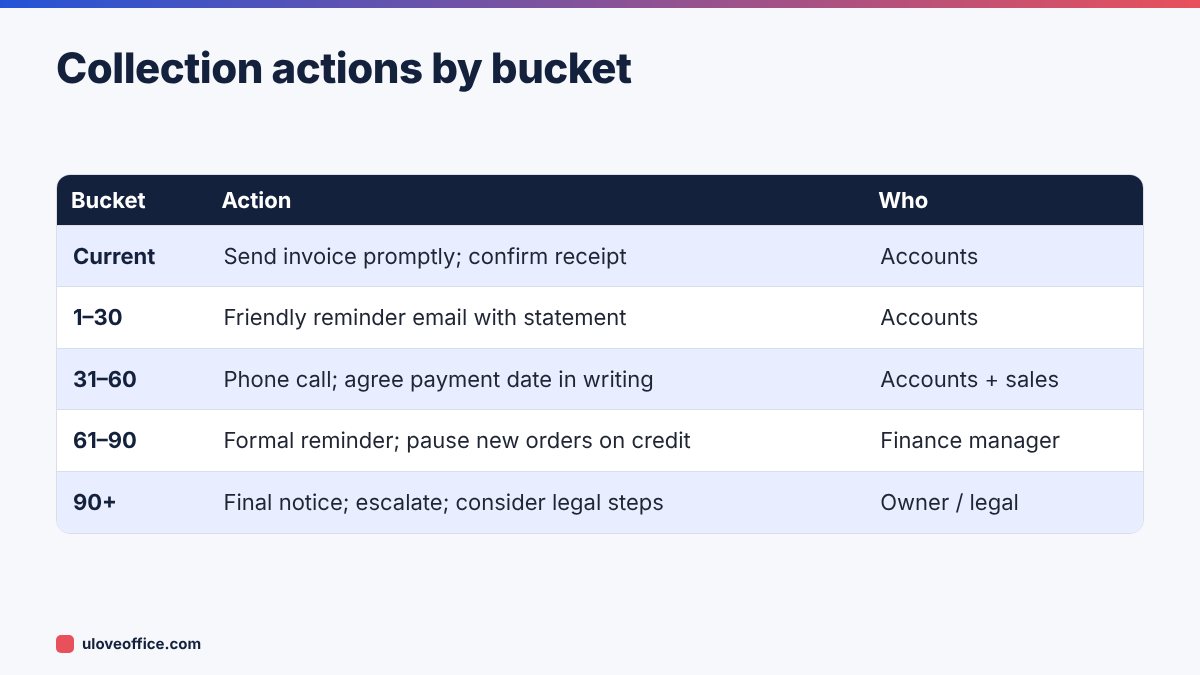
Add Notes and Next action date columns to the open invoices table. Each week, filter by bucket 31+ and work through the list.
Step 6: Chart it
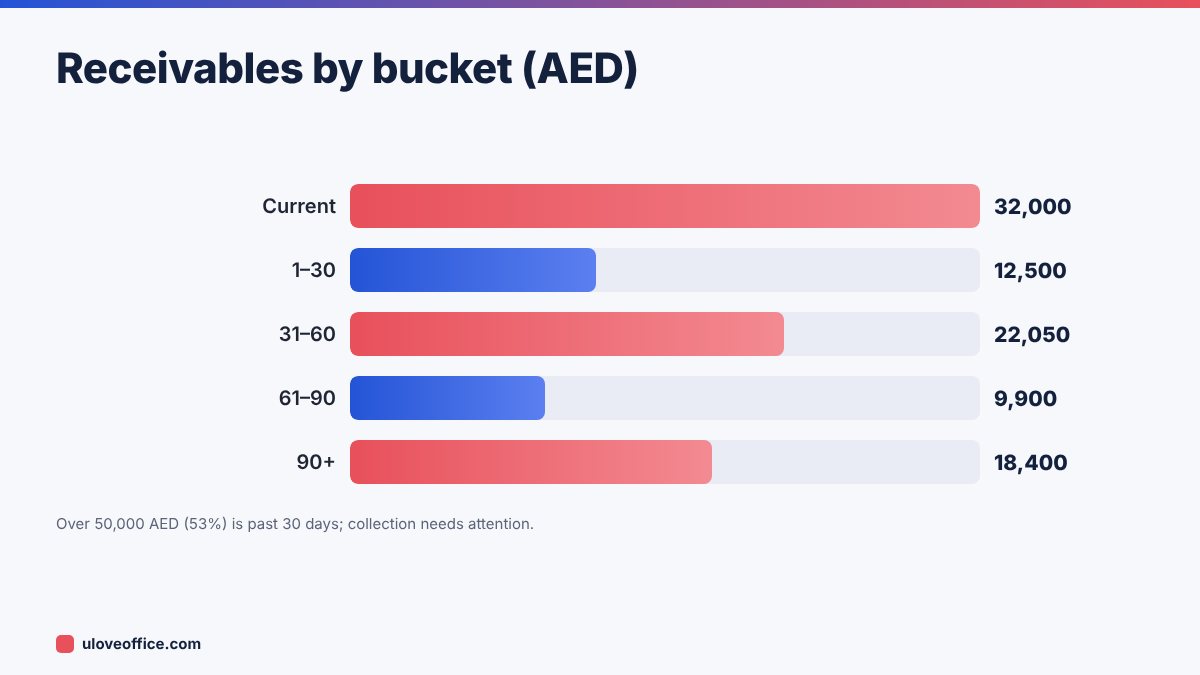
A stacked bar chart of the bucket totals, or a line chart of total overdue over the last 12 months, shows whether collection is improving. Keep a small history table where you paste each month’s bucket totals.
Using the report with other tools
- Cash forecast: feed expected collections, by realistic payment date, into your 13-week cash flow forecast.
- DSO: track days sales outstanding monthly. Our DSO guide shows the formula.
- Customer statements: send statements to customers with overdue balances. Export a filtered list per customer to PDF with Excel to PDF.
- Credit limits: review limits for customers who are often in 61–90 and 90+.
UAE-specific points
- Post-dated cheques (PDCs): if a customer has given a PDC, note the cheque date. The invoice is still unpaid until the cheque clears; some businesses show PDCs in a separate column to see what is “secured”.
- Retentions in construction and fit-out contracts are often due months after completion. Track them separately so they do not distort the 90+ bucket.
- VAT: the VAT on unpaid invoices has usually already been paid to the FTA. UAE VAT rules allow bad debt relief in specific conditions; ask your accountant about long-overdue debts.
- E-invoicing from 2027: e-invoices arrive in customers’ systems instantly with structured data, which should reduce “we never received the invoice” delays.
Worked example
A Dubai fit-out company had AED 940,000 of receivables and felt cash was always tight. The first aging report showed 38% over 60 days, mostly from four customers. They agreed the bucket actions above, assigned each overdue invoice to a person, and reviewed the report every Monday. After three months, receivables over 60 days fell to 19%, and two customers moved to shorter terms after repeated late payment. The company also discovered AED 45,000 of invoices disputed for small errors that nobody had fixed; resolving them took a week.

Common mistakes in aging reports
- Ignoring part payments and credit notes, so balances look larger than they are and customers receive wrong reminders.
- Unapplied receipts: a customer paid, but the payment is not matched to invoices, so the invoice still shows as overdue. Clear unapplied cash before sending reminders.
- Mixing currencies without converting to AED, which distorts totals.
- Using TODAY() in a report you file, so the numbers change each time the file is opened. Use a fixed report date for month-end reports.
- No owner for each overdue invoice, so everyone assumes someone else is chasing.
- Not talking to sales. Collections and sales should agree on the message to customers, especially before credit is paused.
Making reminders easy
Prepare three short email templates, one for each stage: a friendly reminder (1–30 days), a firmer reminder with a request for a payment date (31–60 days) and a formal notice (61+ days). Attach a customer statement as PDF. Keep the tone professional; most late payments come from process problems on the customer side, such as missing purchase order numbers, not unwillingness to pay. Ask early whether anything is blocking payment, and fix it.
Building the report in your accounting system’s export
Most accounting packages used by UAE SMEs can export open invoices to Excel or CSV. Set up the export once with the columns you need (customer, invoice number, invoice date, due date, balance), save the export to the same folder each week, and load it with Power Query so the cleaning, the days overdue and the bucket columns are added automatically on refresh. Our Power Query guide explains how. You then only need to add notes and next actions, which you can keep in a separate table linked by invoice number so they are not lost when the export is refreshed.
Sharing the report
Different people need different views. The owner wants totals by bucket and the top ten overdue customers. Sales managers want their own customers only. The accounts team wants the full invoice list with notes. Use filters or separate summary sheets for each audience, and export the owner’s one-page view to PDF each month for the management pack.
Key takeaways
- Start with a clean table of open invoices and a fixed report date.
- Days overdue = report date minus due date, never below zero.
- Use a bucket lookup table so limits are easy to change.
- Summarise with SUMIFS, a PivotTable or PIVOTBY, and show percentages.
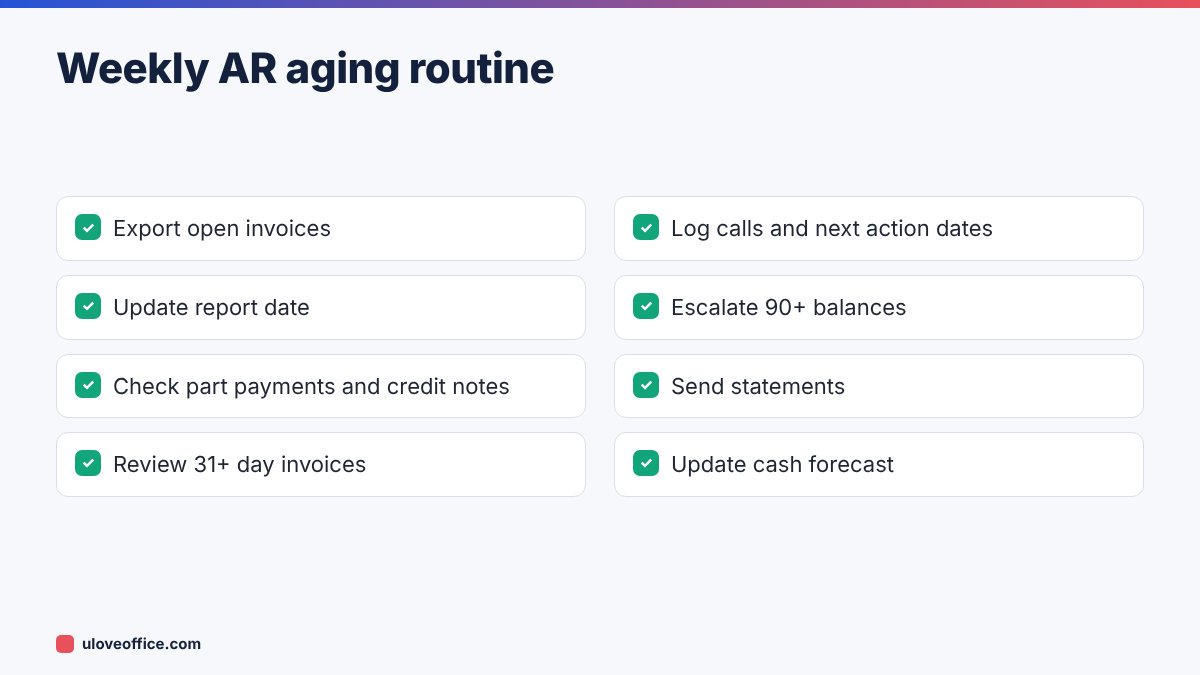
- Attach a standard action to each bucket and review weekly.
📘 Continue reading
Frequently asked questions
Should I age by invoice date or due date?
Due date is better for collections. If your system ages by invoice date, label the report clearly.
How often should I run it?
Weekly for collections, monthly for management reporting.
What is a good percentage in the 90+ bucket?
It depends on the industry, but anything above a few percent deserves a plan for each invoice.
Can I build this in Google Sheets?
Yes. SUMIFS, IFS, VLOOKUP and pivot tables all work.
Conclusion
An AR aging report turns a list of unpaid invoices into a collection plan. Build a clean open-invoice table, calculate days overdue and buckets, summarise by customer, attach an action to each bucket and review it every week. You will collect faster, spot problem customers earlier and plan cash with far more confidence.
Last checked: 9 November 2026.