
How to fill in PDF forms online, including scanned forms
Quick answer: Open ULoveOffice Fill PDF Forms and upload your form. If the PDF has form fields, click each field and type. If it is a flat or scanned form with no fields, add text boxes where the answers go. Check every page, then download the completed file. If you need to sign it, use eSign PDF after filling. For forms going to an official body, save a flattened copy so your answers cannot shift or be edited.
Office life in the UAE involves endless forms: visa and Emirates ID paperwork from PROs, bank account updates, supplier registrations, insurance claims, school forms and landlord documents. Printing, filling by hand and scanning wastes time and produces blurry results. Filling the PDF directly is faster and cleaner.
Two kinds of PDF forms
Before you start, find out what kind of form you have, because the method differs.
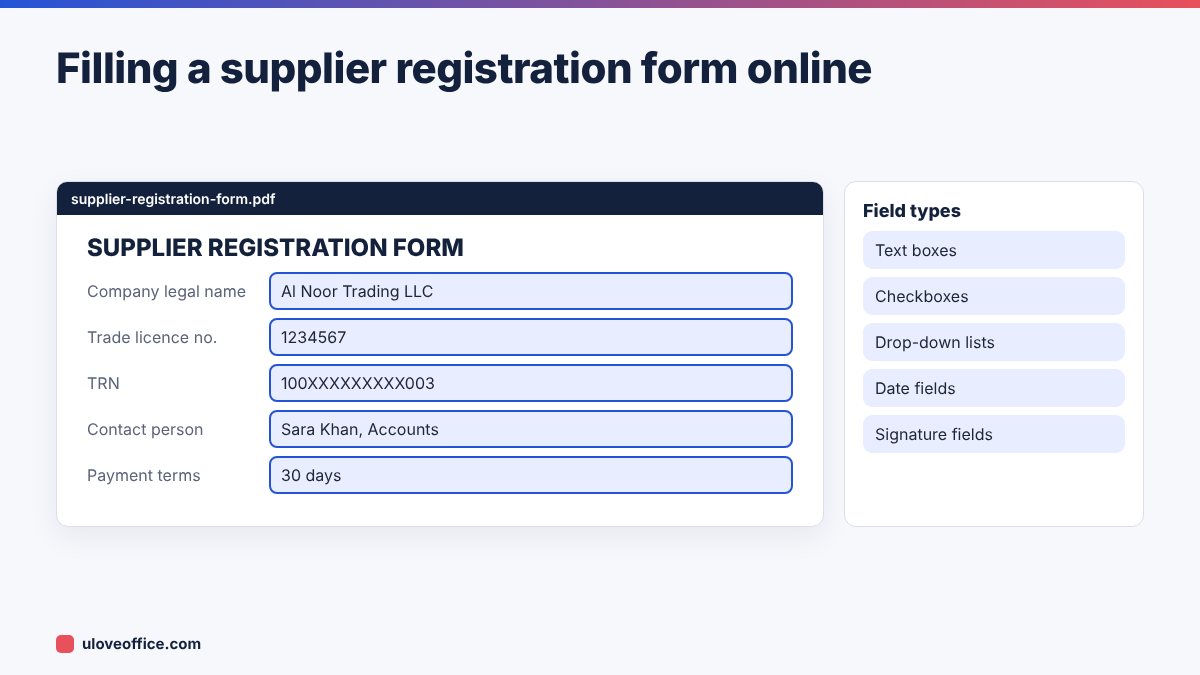
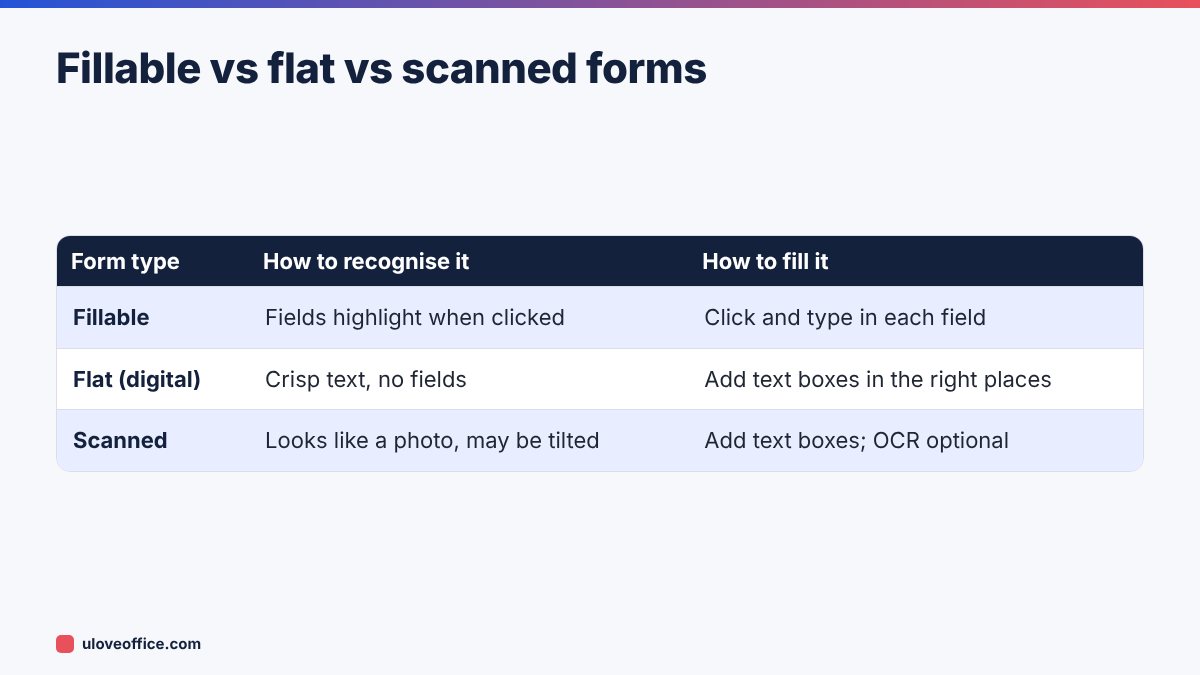
Fillable (interactive) forms have built-in fields. When you open them in a PDF viewer, boxes are highlighted, and you can click and type. Checkboxes tick, drop-downs open and dates may have a picker. Government and bank forms are often fillable.
Flat (non-fillable) forms look like forms but have no fields. They were created by exporting a Word document or scanning a paper form. You cannot click into them. To fill them, you add text boxes on top.
A quick test: open the PDF and click where you would write your name. If a cursor appears inside a box, it is fillable. If nothing happens, it is flat.
How to fill a fillable PDF form
- Open Fill PDF Forms and upload the file.
- Click the first field and type your answer. Press Tab to move to the next field.
- Tick checkboxes and choose options from drop-down lists.
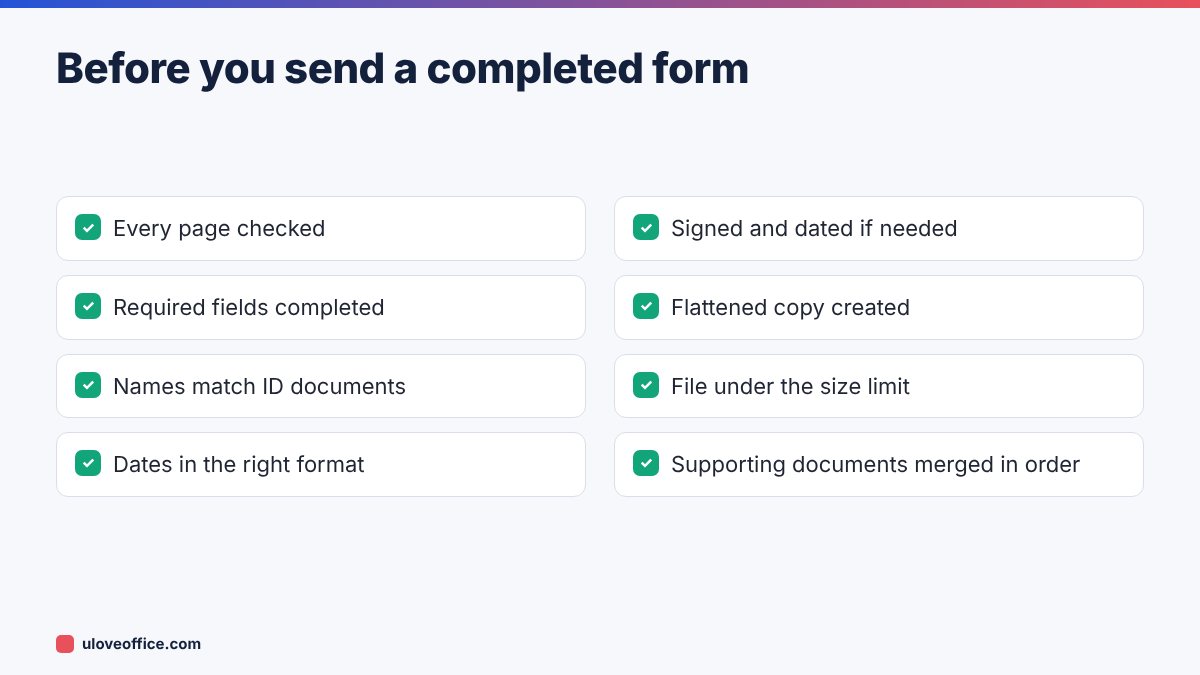
- Use the date format the form asks for. In the UAE, forms usually use DD/MM/YYYY, but international forms may expect MM/DD/YYYY.
- Scroll through every page. Multi-page forms often hide required fields on the last page.
- Download the completed PDF.
If a field is too small for your answer, the text may shrink or be cut off. Shorten the answer or use an abbreviation rather than leaving information hidden.
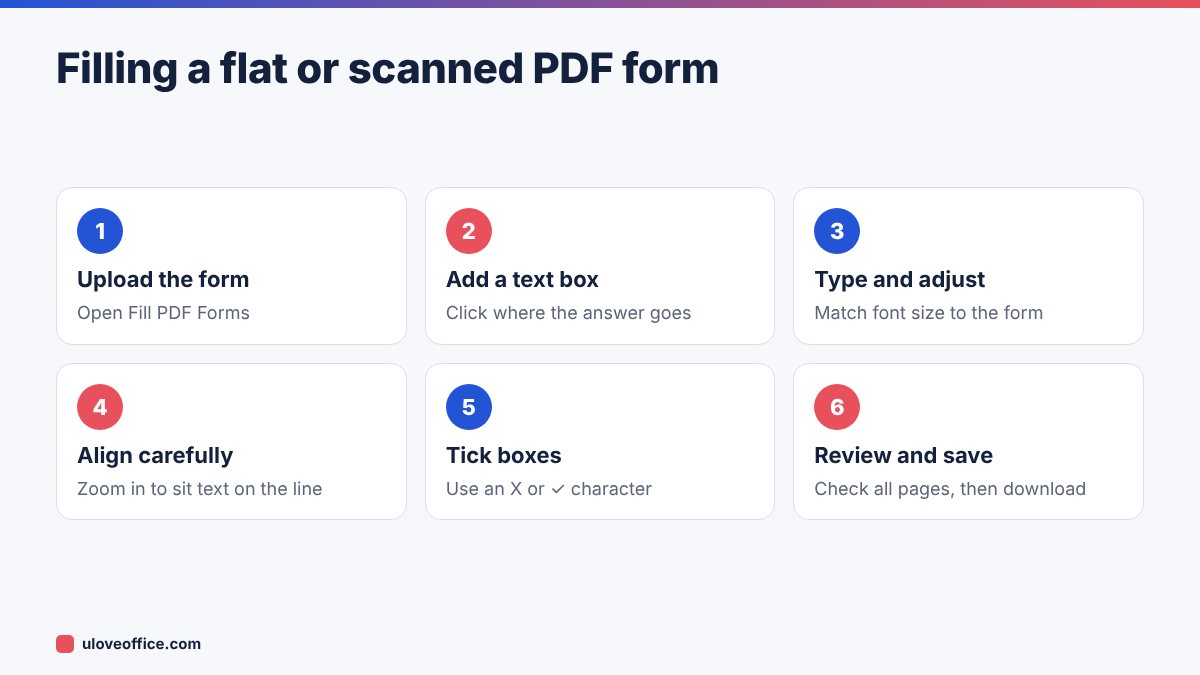
How to fill a flat or scanned form
Tips for a neat result
- Use one font and size throughout. Around 10 to 11 point matches most printed forms.
- Zoom in to 150% or more when positioning text so it sits on the line instead of floating above it.
- Use capital letters where the form says “BLOCK CAPITALS”, which is common on UAE government and visa forms.
- Tick boxes with an X placed in the centre of the box.
- Do not cover printed text. If a box is small, use a smaller font.
Straighten scans first
If the scanned form is tilted, your typed text will look crooked against it. Rotate the page with Rotate PDF if it is sideways. For a slight tilt, it is often quickest to rescan the form straight, or ask the sender for the original digital file.
Filling forms in Arabic
Many UAE forms have Arabic fields or are fully in Arabic. A few things help:
- Make sure your keyboard has Arabic input enabled (on Windows, add Arabic in Language settings; on Mac, add an Arabic input source).
- Arabic is written right to left. In a text box, type the full phrase in one go rather than editing words in the middle, which can scramble the order in some tools.
- Check that the font supports Arabic. If you see empty squares or disconnected letters, the font does not support Arabic shaping. Choose a font such as Arial or a dedicated Arabic font if the tool offers it.
- Names should match the passport or Emirates ID transliteration exactly, in both languages.

Adding a signature
If the form needs a signature, fill it first and then sign. Open the completed file in eSign PDF, place your signature in the signature box and add the date. Our guide on how to sign a PDF electronically without printing it covers signature options and when an electronic signature is accepted.
Some UAE government services require UAE PASS digital signatures or submission through their own portal. In those cases, follow the portal’s process rather than signing the PDF yourself.
Saving the form correctly
How you save matters:
- Keep an editable copy for yourself, so you can correct mistakes or reuse it next year.
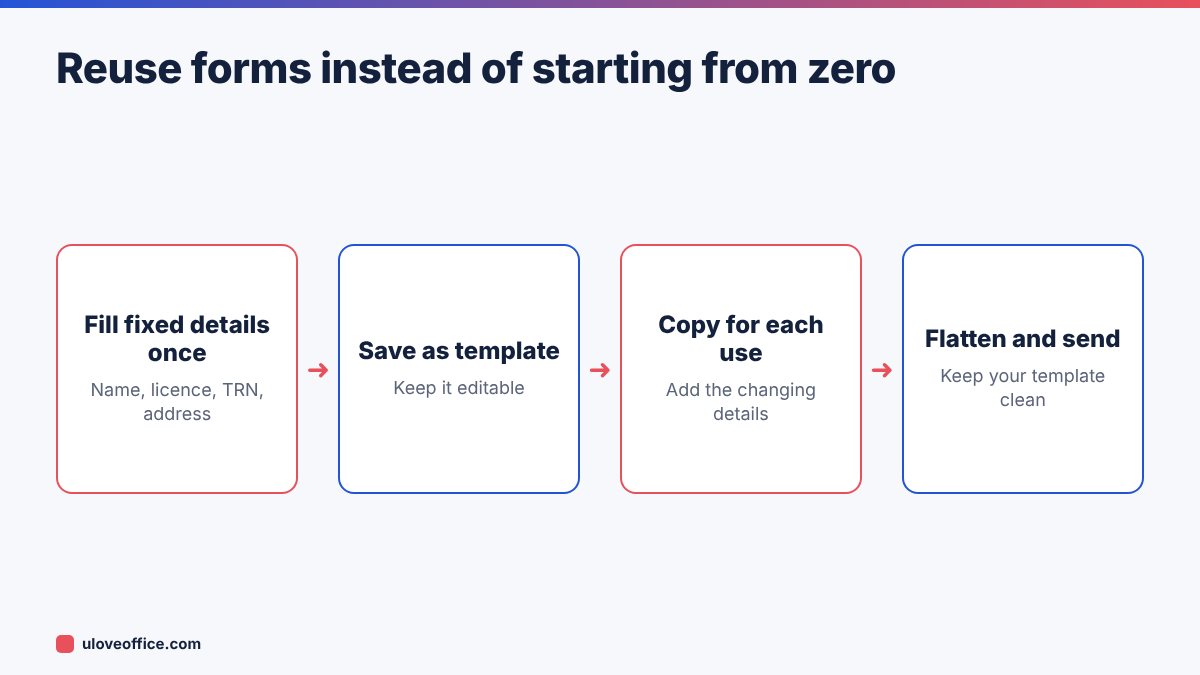
- Send a flattened copy to the recipient. Flattening merges your answers into the page so they cannot be accidentally changed and display the same in every viewer.
- Check the file in a different viewer (for example, your phone) before sending. Fillable fields sometimes appear empty in another viewer if the form was saved incorrectly.
- Compress if needed. Portals often limit uploads to 2 MB or 5 MB. Use Compress PDF if the file is too large.
- Combine supporting documents. If you must send the form with copies of a passport, visa and trade licence, merge them into one PDF with Merge PDF in the order the recipient asks for.
Common mistakes
Leaving fields blank. If a question does not apply, write “N/A” instead of leaving it empty, unless the form says otherwise. Blank fields can lead to the form being returned.
Inconsistent details. The company name on page 1 must match the name on the stamp and the trade licence on page 4.
Sending the wrong version. If you filled the form twice, delete the old file to avoid sending it by mistake.
Forgetting privacy. Forms often contain Emirates ID, passport and bank details. Send them only to the right recipient, and use Protect PDF to add a password when sending by email. Share the password by a different channel, such as a phone call or text.
Making your own forms fillable
If your company sends the same form to customers or employees every week, give them a fillable version. Create the form in Word with clear boxes, convert it to PDF, and add form fields in a PDF editor. A fillable form reduces errors and makes it easier to copy the answers into your systems.
Common UAE forms you can fill as PDFs
Many forms that used to be printed can now be completed digitally, then uploaded or emailed:
- Bank forms: account updates, standing instructions, salary transfer letters requested by your bank.
- Supplier and customer registration forms, especially now that e-invoicing requires accurate TRNs and electronic addresses.
- Insurance claim forms for medical, motor and travel insurance.
- HR forms: leave applications, expense claims, bank detail changes and exit clearance forms.
- School and nursery forms: admission, transport and medical consent forms.
- Tenancy and building forms: move-in requests, access card applications and maintenance requests.
Government applications for visas, Emirates ID, licences and permits are increasingly handled through official portals and apps rather than PDF forms. Always use the official channel when one exists, and fill PDFs only where the authority still asks for them.
Reusing forms you fill often
If you fill the same form regularly, save time:
- Fill it once with the details that never change (company name, licence number, TRN, address).
- Save that version as a template, for example
bank-form-template-company-details.pdf. - Next time, start from the template and add only the details that change.
- Keep a text file with your standard answers (licence number, TRN, IBAN for receiving payments, PO box) to copy and paste accurately.
This also reduces typing errors in long numbers, which are the most common reason forms are returned.
Accessibility and readability
Make your typed answers easy for the person processing the form. Use black or dark blue text, avoid decorative fonts, and do not shrink text below 8 point. If the form will be printed by the recipient, check how it looks at 100% zoom, not zoomed in. Clear forms are processed faster and returned less often.
Key takeaways
- Check whether the form is fillable, flat or scanned before you start.
- Use one font size, zoom in to align text, and use block capitals where asked.
- Fill first, sign second, and send a flattened copy.
- Merge supporting documents in the order requested and compress for upload limits.
- Protect forms with ID or bank details before emailing them.
📘 Continue reading
Frequently asked questions
Can I fill a PDF form on my phone?
Yes. Upload it to Fill PDF Forms in your mobile browser. A tablet or laptop is easier for long forms.
Why can’t I type in my PDF form?
It is probably a flat form. Add text boxes on top instead of clicking into fields.
Will the recipient see my typed text?
Yes, especially if you send a flattened copy. Check it in another viewer first.
Can I fill a form that is password protected?
If editing is restricted, you need the password to remove the restriction. Use Unlock PDF only for files you are authorised to edit.
Conclusion
You never need to print a form again. Check whether the PDF is fillable, type into fields or add text boxes, take care with Arabic text and dates, sign after filling and send a flattened, compressed copy with supporting documents merged in order. The result is neater, faster and easier for the recipient to process.
Last checked: 9 November 2026.