
Make scanned PDF searchable: free OCR guide
Make scanned PDF searchable: free OCR guide
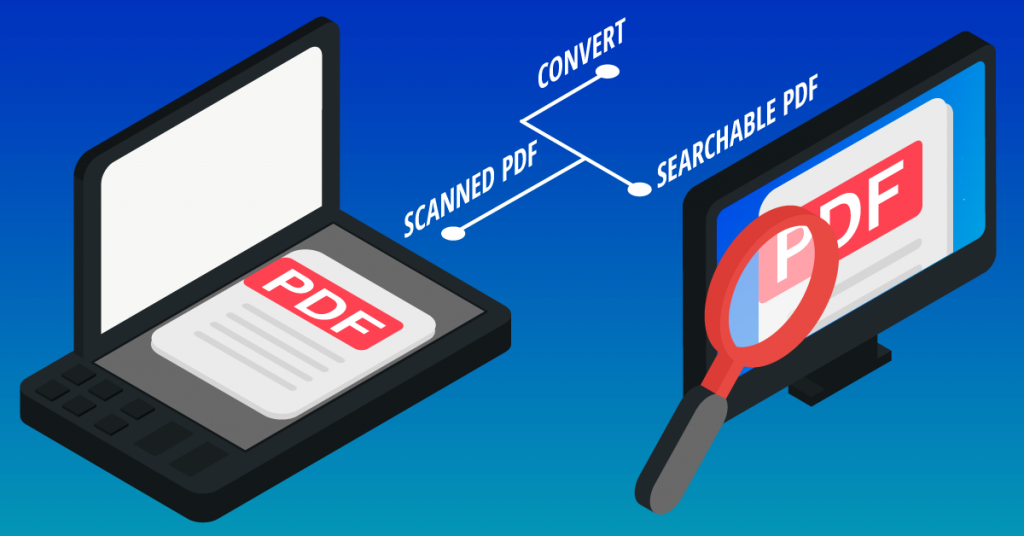
To make a scanned PDF searchable, run optical character recognition (OCR) on the file. A normal scan can contain only page images, so a PDF viewer cannot search the words as text. OCR analyzes those images, recognizes the characters and adds machine-readable text that can be searched, selected and copied. Upload the scanned PDF to an OCR tool, choose the correct language if offered, process the file, then test the result with Find or text selection. If the searchable PDF is too large afterward, use a compress PDF online tool to reduce its size before emailing, uploading or storing it.
Why a scanned PDF is not searchable
A scanner can create a PDF that looks exactly like a paper document but contains only images. Adobe explains that when paper is scanned to PDF, the resulting file may contain image data rather than searchable text. That is why typing a name, invoice number or phrase into Find may return nothing even though you can clearly see the words on the page.
OCR solves this problem by recognizing text inside images. Microsoft describes OCR as technology that extracts printed or handwritten text from images and documents and turns it into digital text. In a searchable PDF, recognized text can be embedded with the scanned page so you keep the document’s visual appearance while gaining text search. OCR accuracy is not perfect, however, so important names, dates, totals and reference numbers should always be checked.
How to make scanned PDF searchable step by step
Step 1: Check whether the PDF already contains searchable text
Open the PDF and try to drag across a sentence to select individual words. You can also press Ctrl+F on Windows or Command+F on a Mac and search for a clearly visible word. If you cannot select the text and search finds nothing, the page is likely image-based and needs OCR. Adobe recommends text selection as a quick way to identify scanned content.
Step 2: Open an OCR PDF tool
Open a tool designed to convert a scanned PDF to searchable PDF. A browser-based OCR PDF tool is convenient when you want to work without installing desktop software. Before uploading confidential material, check the service’s privacy, retention and security information. Do not assume that every free OCR PDF service has the same file-size, page-count or usage rules.
Step 3: Upload the scanned PDF
Select the PDF containing the scanned pages and add it to the OCR tool. If the tool displays limits for file size, page count or number of jobs, follow the current limits shown on the page. Large, image-heavy scans can take longer to upload and process than simple digital PDFs.
Step 4: Choose the document language if available
If the OCR tool asks for a language, select the language that matches the document. Language information can help text recognition. For a mixed-language document, use the options supported by the specific tool. The exact controls differ by service, so the published guide should mirror the choices shown on the live uloveoffice.com interface.
Step 5: Run OCR and create the searchable PDF
Start the OCR process. The system analyzes the scanned page images and recognizes the text. Adobe’s current Acrobat guidance describes OCR as creating a searchable text layer in a scanned PDF. Microsoft likewise describes searchable PDF output as embedding detected text so the document can be searched. When processing finishes, save the searchable version rather than overwriting your only copy of an important original scan.
Step 6: Test the recognized text
Open the processed PDF and search for several words from different pages. Select and copy a short sentence, then compare it with the visible scan. Pay extra attention to small fonts, faint scans, tables, signatures, unusual typefaces and numbers. Adobe recommends reviewing OCR results and correcting recognition errors when necessary. A searchable file is useful only if the recognized text is reliable enough for your purpose.
Step 7: Compress the searchable PDF if needed
OCR and PDF compression solve different problems. OCR makes image text searchable; compression reduces file size. If the finished file is too large for email, a website form or document storage, use a PDF compressor after OCR. Search terms such as compress PDF online, compress PDF free, reduce PDF size and compress PDF without losing quality describe this second step. After compression, reopen the PDF and confirm that both the page images and text search still work as expected.
Worked example with AED figures
Suppose a small UAE business receives a 24-page scanned supplier agreement for an AED 18,500 order. The PDF looks normal, but Ctrl+F cannot find the supplier name or the figure AED 18,500 because each page is an image. The administrator uploads the scan to an OCR tool, selects the appropriate language, runs OCR and saves a new searchable PDF.
The administrator then searches for “18,500” and the supplier name, checks those results against the scanned pages and verifies the important figures manually. The AED 18,500 amount is not changed by OCR; OCR simply makes the text easier to locate. If the searchable file is still too large to attach to an email, the administrator can use a compress PDF tool, save the smaller version and test the search again before sending it.
How to improve OCR results
Start with the clearest scan available. Straight pages, readable contrast and sufficient resolution give OCR more useful visual information than blurred, cropped or heavily skewed pages. If the source is poor, rescanning the original paper may produce a better result than repeatedly processing an unreadable PDF. Adobe’s scan workflow includes enhancement and straightening steps before text recognition, which reflects the value of a clean source image.
Do not rely on OCR alone for legally or financially important information. Recognition software can confuse similar-looking characters such as 0 and O, 1 and I, or 5 and S. Check invoice totals, account references, dates and names against the visible page. Keep the original scan when you need an authoritative visual record, and use the searchable copy for finding, selecting and reusing text.
Can you make scanned PDF searchable free unlimited times?
People often search for a way to make scanned PDF searchable free unlimited times because OCR jobs can involve many documents. Whether a service is actually free and unlimited depends on its current rules. Some OCR services impose page, file-size, daily-use, account or processing limits. Do not describe a tool as unlimited unless the live product genuinely has no stated usage cap for the relevant workflow.
For uloveoffice.com, verify the live OCR tool before publication. If users can run OCR repeatedly for free without a stated usage limit, make that benefit clear near the steps and FAQ. If there is a limit, publish the real limit instead. The same rule applies to claims such as free unlimited PDF compression: describe the actual tool rather than promising functionality that may change.
Frequently asked questions
How do I make a scanned PDF searchable?
Run OCR on the scanned PDF. OCR recognizes text in the page images and adds machine-readable text so words and phrases can be searched. After processing, test the PDF with Find and verify important recognized text against the scan.
How can I tell if a PDF needs OCR?
Try selecting individual words or searching for a clearly visible phrase. If the page behaves like one large image and visible words cannot be found, the PDF probably needs OCR. Some PDFs are hybrid files with both searchable text and scanned images, so test more than one page.
Does OCR change the appearance of a scanned PDF?
A searchable PDF can preserve the scanned page image while adding recognized text. Microsoft describes searchable PDF capability as embedding text over the image content. Exact output can vary by OCR product and settings, so review the processed file before distributing it.
Why is OCR text sometimes wrong?
OCR has to interpret characters from an image. Poor scan quality, skew, low contrast, unusual fonts and complex layouts can cause recognition errors. Review important content after OCR, especially numbers, names and contractual or financial details.
Can I compress a PDF after OCR?
Yes. OCR makes the scanned PDF searchable, while compression is used to reduce PDF size. If you compress the searchable file, test the final copy afterward to confirm the pages remain readable and the text can still be searched.
Conclusion
To make scanned PDF searchable, first confirm that the file is image-based, run OCR, save the processed PDF and test several recognized words. Review critical text rather than assuming every OCR result is exact. When the searchable file is too large to share, go to uloveoffice.com and use the Compress PDF tool to reduce the PDF size, then check the final document before sending or storing it.
Screenshots needed from the live tool
- Step 1 – OCR/searchable PDF landing page showing the upload area.
- Step 2 – A scanned PDF selected and ready for OCR.
- Step 3 – Language, page or OCR settings shown by the live tool, if available.
- Step 4 – OCR processing/action state.
- Step 5 – Completed searchable PDF and the live save/download action.
- Step 6 – Final searchable PDF with a word highlighted through Find, if the tool provides a preview.
- Related workflow – Compress PDF tool upload screen for the OCR-processed PDF.
Internal links to add
- Target tool: OCR PDF / Make PDF Searchable on uloveoffice.com – insert the exact live tool URL.
- Related tool: Compress PDF on uloveoffice.com – insert the exact live Compress PDF URL.
- Related article/tool: PDF to Word – link to the matching live page if published.
- Related article/tool: Merge PDF or Split PDF – link to the most relevant live page if published.
Sources for factual claims
- Adobe Acrobat – Paper to PDF / Scan & OCR, updated June 28, 2026: https://experienceleague.adobe.com/en/docs/document-cloud-learn/acrobat-learning/get-started/create/scan-and-ocr
- Adobe Acrobat Help – Recognize text in scanned documents, updated November 5, 2025: https://helpx.adobe.com/au/acrobat/desktop/create-documents/scan-documents-to-pdfs/recognize-text.html
- Adobe Acrobat – Searchable PDF files and how to create them: https://www.adobe.com/uk/acrobat/resources/document-files/pdf-types/searchable-pdf.html
- Microsoft Learn – Overview of optical character recognition: https://learn.microsoft.com/en-us/microsoft-365/documentprocessing/ocr-overview?view=o365-worldwide
- Microsoft Learn – Document Intelligence Read model / Searchable PDFs: https://learn.microsoft.com/en-us/azure/ai-services/document-intelligence/prebuilt/read?view=doc-intel-4.0.0
Editorial note: Verify uloveoffice.com’s current OCR availability, supported languages, file/page limits, privacy wording, batch processing and whether use is genuinely unlimited before publication. The FAQ topics reflect common search questions and current search-result themes; exact Google “People also ask” panels can vary by location and time.