
How to compare two PDF contracts and find every change
Quick answer: To compare two PDF contracts, upload the original and the revised version to ULoveOffice Compare PDFs. The tool highlights text that was added, deleted or changed between the two files. Review every highlighted change, paying special attention to numbers, dates, names, payment terms and liability clauses. If either file is a scan, run OCR PDF first so the text can be compared.
When a supplier, landlord or client sends back “the contract with a few small edits”, you should never rely on their summary of what changed. Reading two 30-page documents side by side is slow and you will miss things. A comparison tool takes a minute and shows every difference.
Why you should always compare contracts
People edit contracts for good reasons, but sometimes changes slip in without being mentioned:
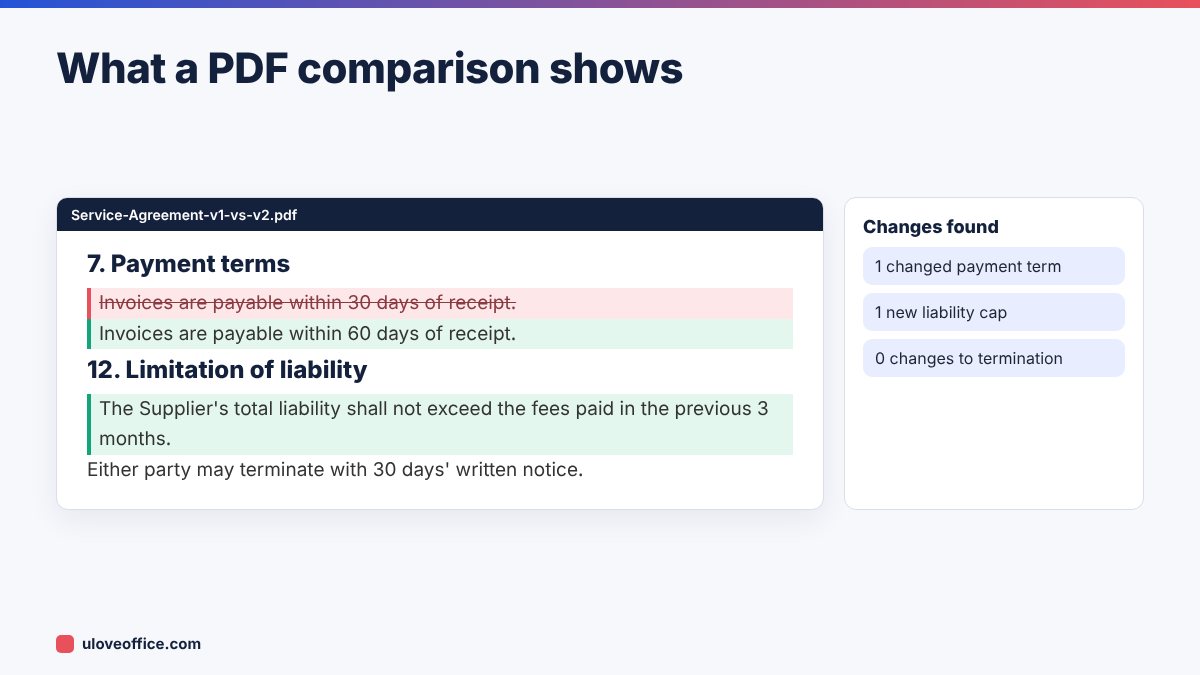
- A payment term moves from 30 to 60 days.
- A liability cap appears or shrinks.
- A renewal clause becomes automatic.
- A notice period changes from 90 to 30 days.
- A number in the price schedule changes by one digit.
None of these jump out when you read the document again quickly. A comparison tool does not get tired and highlights every difference. It also creates a record that you checked, which is useful if a dispute arises later.
What you need before you start
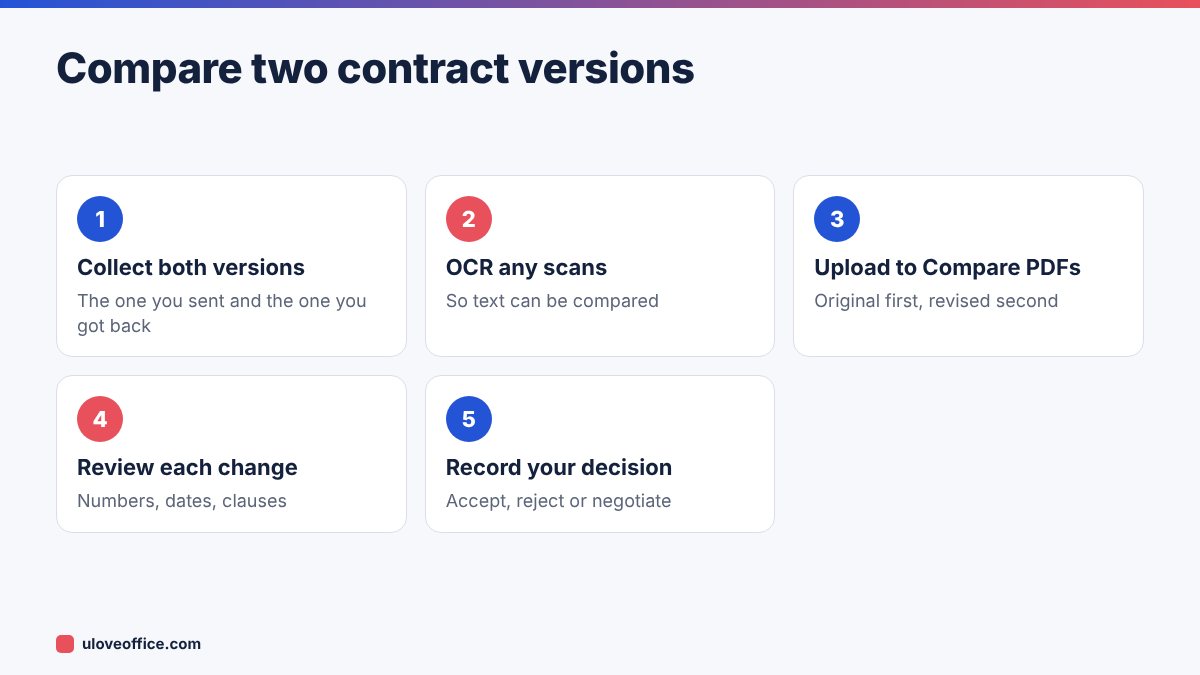
- The version you agreed or sent (version A). Ideally the PDF you sent, not one rebuilt from an old Word file.
- The version you received back (version B).
- Both files as text-based PDFs. If either is a scan or a photo, convert it with OCR first.
- A few minutes without interruptions to review the results.
If you received the revised version as Word, convert it with Word to PDF so you compare like with like.
Step-by-step: comparing PDFs with ULoveOffice
Step 1: Open Compare PDFs
Go to Compare PDFs and upload both files. Put the older version first and the newer version second, so additions and deletions show the right way round.
Step 2: Run the comparison
The tool analyses the text of both documents and lines up matching sections. Even if the other side added a new clause and every following page shifted, a good comparison follows the text, not the page numbers.
Step 3: Read the results
Changes are usually marked like this:
- Added text in green or underlined.
- Deleted text in red or struck through.
- Changed text shown as a deletion and an addition next to each other.
Go through every change from the beginning. Do not just scan the summary count.
Step 4: Check formatting-only changes
Some differences are harmless: a new line break, a page number, a different font. Mark these as reviewed and move on. Focus your time on wording and numbers.
Step 5: Save your review
Download or save the comparison result. Add your comments in your email reply or a review table, and keep the result with the contract file.
What to look for in the results
Pay particular attention to:
Defined terms. If “Services” is redefined at the start, every clause that uses the word changes meaning, even if those clauses look identical.
“Shall” vs “may”. One word changes an obligation into an option.
Removed words. Deletions are easy to miss because there is nothing new to read. A deleted “not” or “reasonable” can reverse a clause.
Schedules and annexes. Price lists and service levels often sit at the end. Make sure both versions include them before you compare.
Comparing scanned or signed contracts
Signed contracts are often scanned. A scan is an image, so a comparison tool cannot read the text until you run OCR. Use OCR PDF on the scanned version, then compare it with the text-based version you agreed.
OCR is very good but not perfect. It can confuse similar characters, such as 0 and O, or 1 and l, and Arabic text needs a tool that supports Arabic OCR. If the comparison shows lots of tiny single-character changes, they are probably OCR errors. Check any that involve numbers against the scan.
This check is valuable: comparing the signed scan with the final agreed draft confirms that nobody changed a page before signing.

Comparing Arabic and bilingual contracts
Many UAE contracts are bilingual, with English and Arabic side by side. Comparison tools work best when each language is compared with its own previous version. Check both language versions separately. A change in the English text should have a matching change in the Arabic text, and if the contract says the Arabic version prevails, the Arabic changes matter most. Ask a qualified translator to check any differences you are unsure about.
Building a simple contract review habit
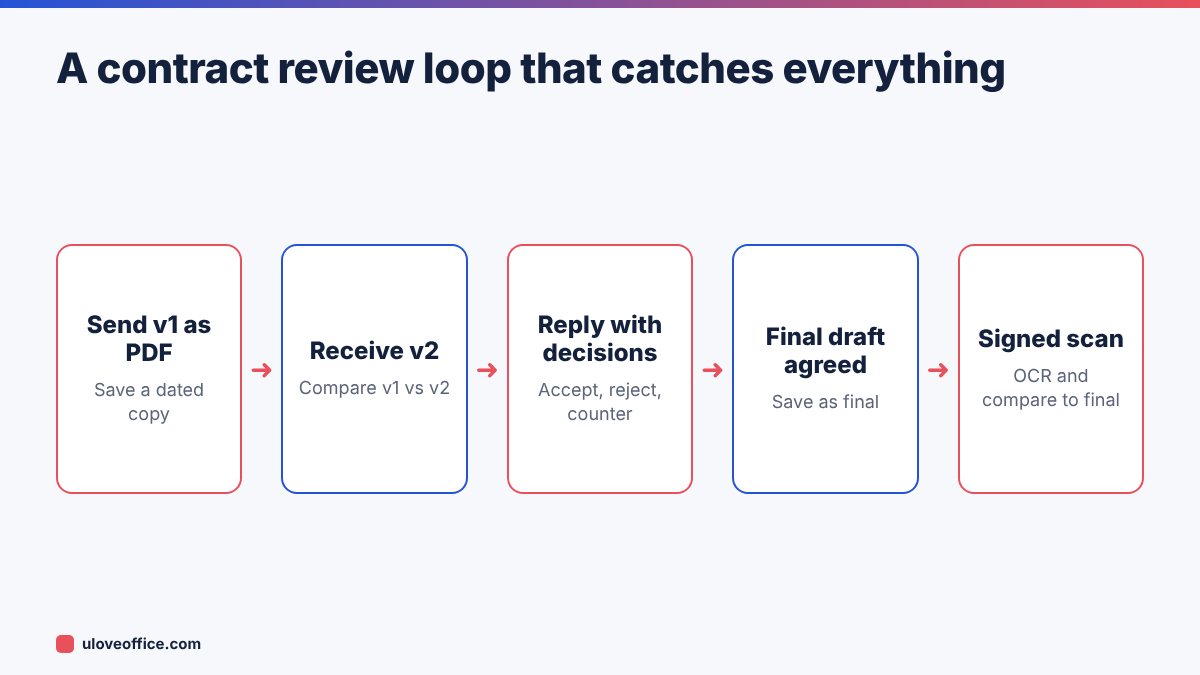
Make comparison part of your process, not an emergency step:
- Always send PDFs, keep the sent copy. Save every version you send with a date in the file name.
- Compare every returned version against the last version you sent, not the first draft.
- List the changes in your reply, accepting or rejecting each one. This creates a clear negotiation record.
- Compare the final signed copy against the last agreed draft.
- Store everything together in the contract folder.
Limitations to be aware of
- Comparison tools compare text, not meaning. They show that words changed; you decide whether it matters.
- Images such as logos, stamps or diagrams may not be compared in detail.
- Tables that were reorganised can show as large blocks of changes even if the numbers are the same. Check tables manually.
- A comparison is not legal advice. For high-value contracts, ask a lawyer to review the changes you find.
Other uses for PDF comparison
The same method works for:
- Policy updates: what changed in the new employee handbook?
- Price lists: which supplier prices went up this quarter?
- Tender documents: did the addendum change any requirement?
- Tenancy contracts: is the renewal identical to last year’s apart from the rent?
- AI-edited documents: what exactly did the AI change in your draft? See our guide on checking AI-generated business documents.
Writing a change summary for your manager or lawyer
After the comparison, turn the results into a short summary that someone else can approve quickly. A simple table works well:
- Clause: the clause number and title.
- Change: what changed, in one sentence.
- Impact: what it means for your business (cash flow, risk, workload).
- Recommendation: accept, reject or propose new wording.
For example: “Clause 7, Payment terms. Changed from 30 to 60 days. Delays our cash receipts by a month on a contract worth AED 40,000 a month. Recommend: reject, offer 45 days.”
This summary often matters more than the comparison itself, because it turns a list of highlighted words into decisions. Keep it with the contract so anyone can see later why a clause was accepted.
A worked example
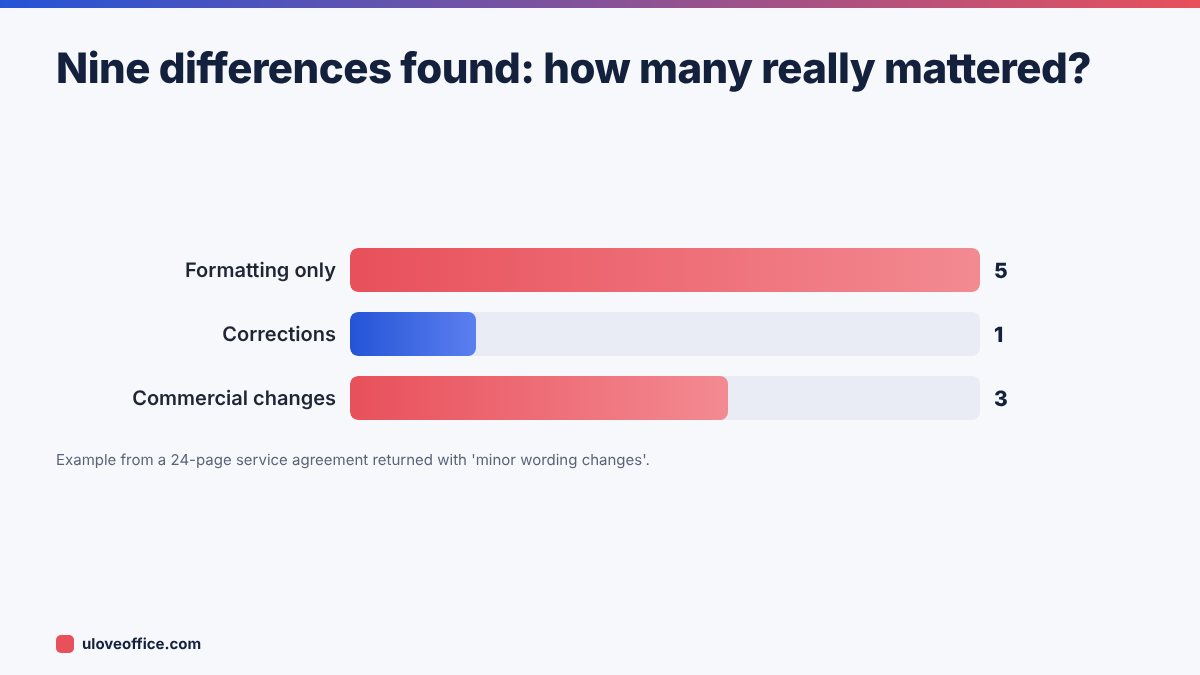
A Dubai facilities company sent a 24-page maintenance agreement to a client. The client returned it with a cover email saying “minor wording changes only”. The comparison found nine differences:
- Five were formatting changes: line breaks and a new logo.
- One corrected a typo in the client’s legal name.
- One changed payment terms from 30 to 60 days.
- One added a cap on the client’s liability at three months of fees.
- One changed the notice period for termination from 90 to 30 days.
The last three were significant. The company accepted the name correction, rejected the 60-day terms, accepted a liability cap at twelve months instead of three, and agreed 60 days’ notice. Without the comparison, all three changes would probably have been signed.
Keeping version names under control
Comparison only works if you know which file is which. Use a naming pattern such as ServiceAgreement_ClientName_v3_2026-11-09_sent.pdf and ..._v3_received.pdf. Store all versions in one folder per contract, and never overwrite an older version. When several people negotiate the same contract, agree that only one person sends versions out, so you always compare against the right file.
Key takeaways
- Never rely on the other side’s summary of changes; compare the files.
- Compare against the last version you sent, not the first draft.
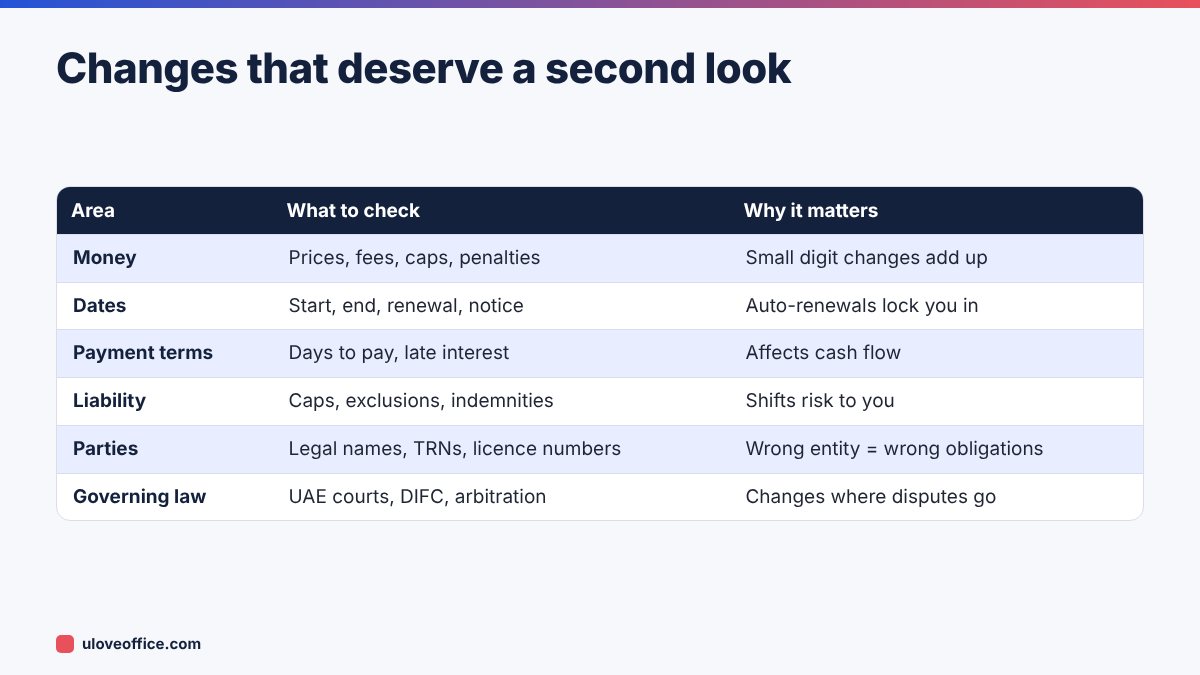
- Focus your review on money, dates, liability, parties and governing law.
- OCR scanned or signed copies before comparing, and check any number changes against the scan.
- Turn the results into a short decision table for your manager or lawyer.
📘 Continue reading
Frequently asked questions
Can I compare a Word file with a PDF?
Convert the Word file to PDF first, then compare the two PDFs.
Does page order matter?
Good comparison follows the text, so inserted pages do not break it. Make sure both files contain the full document, including schedules.
Can I compare more than two versions?
Compare them in pairs: v1 with v2, then v2 with v3.
Will the other party know I compared?
No. The comparison happens on your side. Many professionals mention it anyway, as it encourages careful editing.
Conclusion
Comparing contracts takes a minute and can save months of trouble. Keep every version you send, run a comparison every time a contract comes back, focus your review on money, dates, liability and parties, and do one last comparison against the signed copy. With Compare PDFs and OCR PDF, you can do all of it for free.
Last checked: 9 November 2026. This article is general information, not legal advice.