
Timesheet template Excel: daily, weekly & monthly
Timesheet template Excel: daily, weekly & monthly
A timesheet template Excel file gives you a simple way to record start time, finish time, breaks, regular hours, overtime and project details without building a tracker from scratch. Use a daily template when employees need detailed task records, a weekly format for routine payroll review, and a monthly format for attendance or longer reporting periods. In Excel, elapsed time can be calculated by subtracting the start time from the end time, and totals can be added with SUM. For totals above 24 hours, Microsoft recommends a custom time format such as [h]:mm. This guide shows how to set up each format clearly.
What to include in a timesheet template
A practical timesheet should identify the employee, reporting period and work recorded. Useful columns include date, day, start time, end time, unpaid break, regular hours, overtime hours, project or cost code, task description and approval status. Keep the layout consistent so employees know exactly where to enter data and managers can review different timesheets without learning a new format each time.
Do not add fields simply because there is empty space. A small office may need only date, start, end, break and total hours. A project-based business may also need client, project and billable-hour fields. The best timesheet template Excel format captures enough information for the intended payroll, billing or management process without making daily entry unnecessarily slow.
Choose daily, weekly or monthly format
Daily timesheet template
A daily timesheet is useful when one workday contains several tasks, clients or projects. Give each activity its own row with start time, end time and notes. This format works well for consultants, maintenance teams, field staff and agencies that need to understand where time was spent during the day rather than only the total number of hours.
Weekly timesheet template
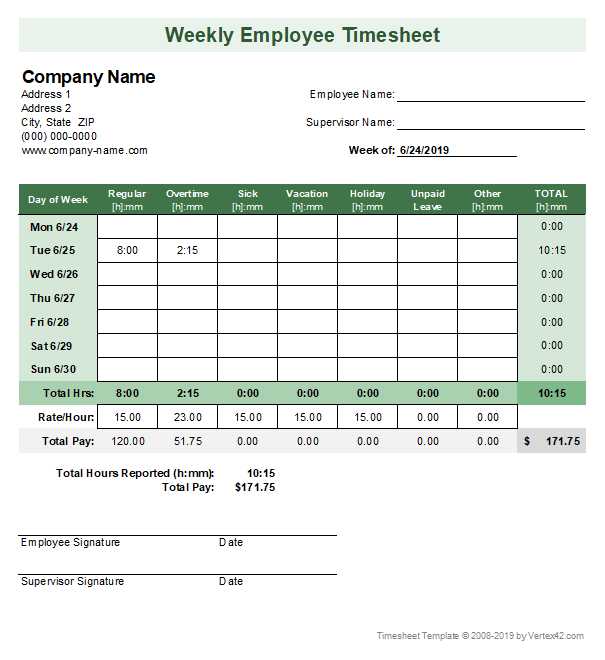
A weekly timesheet is the most compact option for many office teams. Put Monday through Sunday, or the organisation’s actual working days, in rows and total the hours at the bottom. Add separate regular and overtime columns if payroll needs them. Weekly approval also lets a manager catch missing entries before they accumulate for an entire month.
Monthly timesheet template
A monthly template places all dates for the month in one sheet. It is useful for attendance summaries, salaried teams, leave tracking and management reporting. Because monthly totals can exceed 24 hours, make sure Excel displays accumulated time correctly rather than wrapping the total back to a clock-style value.
How to build a timesheet template Excel file step by step
Step 1: Create the header
Add fields for employee name or ID, department, manager and reporting period. If the sheet will be used for clients, add the project or customer name. Keep the header separate from the time-entry table so it remains easy to read when rows are added.
Step 2: Add the time-entry columns
A basic row can use Date, Start, End, Break and Hours. Add Project, Task, Regular Hours and Overtime only when they serve a real purpose. Format Start and End as time values. Avoid typing time as ordinary text because formulas need Excel to recognise the entries as time values.
Step 3: Calculate hours worked
If Start is in B2 and End is in C2, Excel can calculate elapsed time with =C2-B2. Microsoft documents this subtraction method for finding the difference between two times. If you need the result as decimal hours for a rate calculation, a common approach is to multiply the time difference by 24. Subtract an unpaid break separately when applicable.
Step 4: Total the period
Use SUM to add daily values. Microsoft notes that SUM is preferable to manually adding many individual cells because it is easier to maintain and less prone to typing errors. For example, =SUM(E2:E6) totals five daily entries. AutoSum can also detect a nearby range and insert the SUM formula automatically.
Step 5: Format totals above 24 hours
A weekly or monthly total can exceed one day. Microsoft explains that ordinary time formatting may display an unexpected clock-style result when accumulated hours exceed 24. Apply the custom number format [h]:mm to show the full accumulated hours, such as 40:30 instead of a wrapped time-of-day value.
Step 6: Add checks and approval
Create a simple status field such as Draft, Submitted or Approved. Review blank start/end cells, unusually long shifts and negative or zero durations before payroll or billing. If employees edit their own sheets, protect formula cells or place formulas in columns they do not need to type into.
Step 7: Save a clean master template
Keep one blank master file and duplicate it for each reporting period or employee. Do not overwrite the master with live data. Use a consistent filename such as Timesheet_Employee_2026-08.xlsx so archived files sort logically and are easier to retrieve.
Worked example with AED figures
Assume an office administrator records 8 hours on Monday, 8.5 on Tuesday, 7.5 on Wednesday, 9 on Thursday and 7 on Friday. The weekly total is 40 hours. If those hours are being costed internally at AED 60 per hour, the tracked labour cost is 40 × AED 60 = AED 2,400.
Suppose the same work is billed to a client for AED 3,600. The AED 1,200 difference also demonstrates markup vs margin. Markup is AED 1,200 divided by the AED 2,400 cost, or 50%. Gross margin is AED 1,200 divided by the AED 3,600 selling price, or about 33.3%. A timesheet provides the hour data; the pricing model determines how those hours become cost, markup and margin.
Useful Excel formulas for a timesheet
For a straightforward tracker, you do not need complex formulas. Use End minus Start for elapsed time, SUM for period totals, and multiplication when converting decimal hours into an AED cost or billing amount. Excel formulas begin with an equals sign, and formulas that reference cells recalculate when those cell values change. That means changing an employee’s corrected end time can automatically update the daily hours and weekly total.
When copying formulas down a column, check that the cell references adjust as intended. Microsoft notes that copied formulas normally update relative cell references. Keep pay rates or billing rates in clearly labelled cells if they are used in calculations, and use appropriate fixed references when a single rate should apply to every row.
Can I use a timesheet template Excel free unlimited times?
A reusable spreadsheet can be duplicated for as many employees or reporting periods as your workflow requires, but “free unlimited” should describe the actual template or live tool terms. If the uloveoffice.com timesheet template can be downloaded, copied or generated repeatedly without a stated account, credit or download cap, the page can accurately describe that as free unlimited use. If a limit exists, publish the real limit instead.
For repeated office use, keep the template simple and controlled. Maintain one approved master, lock or clearly mark formula cells, document the expected time format and decide who signs off each period. Consistency matters more than adding advanced features that employees do not need.
Frequently asked questions
How do I create a timesheet in Excel?
Create columns for date, start time, end time, breaks and total hours. Enter the work times as Excel time values, subtract start from end to calculate elapsed time, subtract unpaid breaks where required, and use SUM to total the reporting period.
What formula calculates hours worked in Excel?
If the start time is in B2 and the end time is in C2, =C2-B2 calculates the elapsed time. For decimal hours, the time difference can be multiplied by 24. Check overnight-shift requirements separately because a simple same-day subtraction may need adjustment.
How do I total more than 24 hours in Excel?
Sum the time values, then format the total cell with the custom format [h]:mm. Microsoft recommends this format when accumulated time exceeds 24 hours so Excel displays the full total instead of wrapping it as a time of day.
Should I use a daily, weekly or monthly timesheet?
Use daily when detailed tasks or client activities matter, weekly for routine payroll and manager approval, and monthly for attendance or longer reporting. The right format is the shortest one that still captures the information your payroll, billing or management process needs.
Can I download a free Excel timesheet template?
Free templates are available from various providers, but features and usage terms differ. If uloveoffice.com provides a timesheet template, use the live page to confirm the download format, whether editing is required online, and any limits before describing it as free or unlimited.
Conclusion
A good timesheet template Excel file should make time entry faster, not create extra administration. Choose daily, weekly or monthly format based on how much detail you need, calculate elapsed time consistently, use SUM for totals, and format accumulated hours correctly when they exceed 24. Keep a blank master and review entries before payroll or billing. To get started quickly, open the timesheet template on uloveoffice.com, choose the format that fits your team and save a clean copy for each reporting period.
Screenshots needed from the live tool
- Step 1 — Timesheet template landing page showing the available template/start action.
- Step 2 — Daily timesheet format with date, start, end, break and total-hour fields.
- Step 3 — Weekly timesheet format showing multiple days and the weekly total.
- Step 4 — Monthly timesheet format showing the full reporting period.
- Step 5 — Formula or calculated-hours area, if visible in the live template.
- Step 6 — Completed AED example or summary/approval section.
- Step 7 — Download/export action showing the available Excel/XLSX option, if supported.
Internal links to add
- Target tool: Timesheet Template on uloveoffice.com — insert the exact live URL.
- Related article: 10 Excel formulas every office manager should know in 2026.
- Related article: Markup vs margin: the difference with worked examples.
- Related article: Overtime pay in the UAE: rules, formula and calculator.
Sources for factual claims
- Microsoft Support — Add or subtract time in Excel: https://support.microsoft.com/en-us/excel/add-or-subtract-time-in-excel
- Microsoft Support — Use the SUM function to sum numbers in a range: https://support.microsoft.com/en-us/excel/use-the-sum-function-to-sum-numbers-in-a-range
- Microsoft Support — Overview of formulas in Excel: https://support.microsoft.com/en-us/excel/get-started/overview-of-formulas-in-excel
- Microsoft Support — Use Excel as your calculator: https://support.microsoft.com/en-us/excel/get-started/use-excel-as-your-calculator
Editorial note: Verify the exact uloveoffice.com Timesheet Template URL, supported Excel/XLSX download format, editing features, account requirements and any free/unlimited claim against the live tool before publication. For payroll or legal working-time calculations, apply the employment rules relevant to the employee and jurisdiction.